


Page 101 - Graphic Mac User Guide
P. 101
  Geometry pane
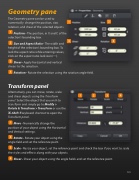
The Geometry pane can be used to numerically change the position, size, rotation, and shear of the selected objects.
Position - The position, in X and Y, of the selection’s bounding box.
Size and Aspect Ratio - The width and height of the selection’s bounding box. To lock the aspect ratio while entering values, click on the aspect ratio lock icon (     ).
Shear - Apply horizontal and vertical shears to the selection.
Rotation - Rotate the selection using the rotation angle  eld.
Transform panel
Alternatively, you can move, rotate, scale and shear objects using the Transform panel. Select the object that you wish to transform and simply go to Modify > Rotate & Transform > Transform or use the ⌘-Shift-T keyboard shortcut to open the Transform panel.
Move - Numerically change the position of your object using the Horizontal and Vertical settings.
Rotate - Rotate your object using the angle  eld and set the reference point.
Scale - Resize your object, set the reference point and check the box if you want to scale the styles and effects along with your objects.
Shear - Shear your object using the angle  elds and set the reference point.
                  101


