


Page 74 - Graphic Mac User Guide
P. 74
                                 Zoom Tool
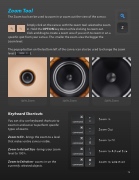
The Zoom tool can be used to zoom in or zoom out the view of the canvas.
Simply click on the canvas with the zoom tool selected to zoom in. Hold the OPTION key down while clicking to zoom out. Click and drag to create a zoom area if you wish to zoom in on a
speci c spot from your canvas. The smaller the zoom area the bigger the zoom level.
The popup button on the bottom left of the canvas can also be used to change the zoom level ( ).
                100% Zoom
Keyboard Shortcuts
You can also use keyboard shortcuts to zoom in and out or to perform speci c types of zooms.
Zoom to Fit - brings the zoom to a level that makes entire canvas visible.
Zoom to Actual Size - brings your zoom level to 100%.
Zoom to Selection - zooms in on the currently selected objects.
300% Zoom
500% Zoom
Zoom In
Zoom Out
Zoom to Fit
Zoom to Actual Size
Zoom to Selection
                 74


