


Page 91 - Graphic Mac User Guide
P. 91
  Effects pane
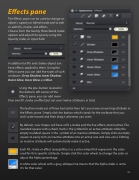
The Effects pane can be used to change an object’s opacity or blend mode and to edit or add  lls, strokes and effects.
Choose from the twenty three blend mode options and adjust the opacity using the Opacity slider, or input  eld.
In addition to  lls and strokes object can have effects applied to them. Using the Effects pane you can add  ve types of such attributes: Drop Shadow, Inner Shadow, Outer Glow, Inner Glow and Blur.
Using the plus button located in the bottom, left corner of the Effects pane, you can add more
than one  ll, stroke or effect,but not over twelve attributes in total.
The button made out of three horizontal lines let’s you move an existing attribute in the Effects pane. Simply click the button which stands for the attribute that you wish to be moved and then drag it wherever you want.
By default, new shapes will have a  ll, a stroke and the  ve effects, but inactive. The rounded square with a check mark is the symbol for an active attribute while the empty rounded square is the symbol of an inactive attribute. Simply click an empty square to easily turn an inactive attribute into an active one and vice-versa. Editing an inactive attribute will automatically make it active.
Each  ll, stroke or effect (except Blurs) as a color wheel that represents the color used for that speci c attribute. Simply click this color wheel to change the color or adjust the Alpha percentage.
A white color wheel with a grey, oblique line means that the Alpha slider is set to 0% for that color.
         91


