Page 2 - Overview - How do I Change the Department for an Award
P. 2
Change the Department for an Award


         E                     Update Contract           Depending on the Contract Type you may need to update the
                                                         Accounting Data associated with the contract lines.

                                                               Fixed Price Contracts – Accounting Distribution
                                                               As Incurred/Prepaid Lines – Deferred Revenue
                                                                Distribution


        Navigation


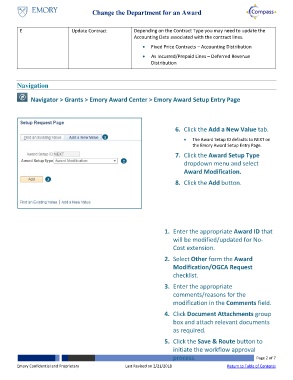
               Navigator > Grants > Emory Award Center > Emory Award Setup Entry Page


                                                                          6.  Click the Add a New Value tab.
                                             1
                                                                                 The Award Setup ID defaults to NEXT on
                                                                                 the Emory Award Setup Entry Page.

                                                                          7.  Click the Award Setup Type
                                                    2
                                                                              dropdown menu and select
                                                                              Award Modification.
                     3
                                                                          8.  Click the Add button.


                                                                      1.  Enter the appropriate Award ID that
                                                                         will be modified/updated for No-
                                                                         Cost extension.

                                                                      2.  Select Other form the Award
                                                                         Modification/OGCA Request
                                                                         checklist.

                                                                      3.  Enter the appropriate
                                                                         comments/reasons for the
                                                                         modification in the Comments field.

                                                                      4.  Click Document Attachments group
                                                                         box and attach relevant documents
                                                                         as required.

                                                                      5.  Click the Save & Route button to
                                                                         initiate the workflow approval
                                                                         process.                           Page 2 of 7

        Emory Confidential and Proprietary           Last Revised on 2/21/2018                  Return to Table of Contents
   1   2   3   4   5   6   7