


Page 25 - LDR CLO
P. 25
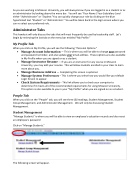
As you are working in McLaren University, you will always know if you are logged in as a student or as an administrator by looking above the menu bar. You will see “Your Name| Your Subsidiary |and either “Administrator” or “Student.”You can quickly change your role by clicking on the blue hyperlinked text “Student” or “Administrator.” You will be taken back to the login screen where you can re-select your preferred role.
Administrator Tabs
This handout will only discuss the tabs that will most frequently be used by leadership staff. Let’s begin by reviewing the last tab on the menu bar entitled “My Profile.”
My Profile Tab
When you click on My Profile, you will see the following “Personal Options.”
• Manage Account Information — This is where you will be able to change your password
and password reminder, and also update your email address. These options are also available
in My Profile when you are signed on as a student.
• Manage Instructor Resume — If you are an instructor for any course in McLaren
University, you may add your resume. This will allow students enrolled in your class to learn
determine if it meets all of the recommended requirements for using McLaren University. This option is also available to you in your “My Profile” when you are signed on as a student.
more about you.
• Manage Business Address — Completing this screen is optional.
• Manage System Preferences – This is where you select how you would like your default
Login Screen to appear.
• Check System Requirements – This link allows you to check your computer to
People Tab
When you click on the “People” tab, you will see three (3) headings; Student Management, Student Group Management, and Administrator Management. We will only be discussing Student Management.
Student Management
“Manage Students” is where you will be able to view an employee’s education records and also reset an employee’s password
Click on “Manage Students.”
The following screen will appear.


