


Page 45 - Graphic Mac User Guide
P. 45
 To  nish editing a path, simply click on the  rst point in the path to close it. Alternatively, pressing the ESC key will end editing the current path without closing it.
After closing the current path, or ending editing by pressing the ESC key, the Pen tool can be used to create a new path.
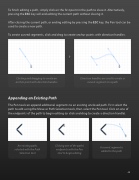
To create curved segments, click and drag to create anchor points with direction handles.
Clicking and dragging to create an Direction handles are used to create a anchor point with direction handles curved segment on a path
Appending an Existing Path
The Pen tool can append additional segments to an existing unclosed path. First select the path to edit using the Move or Path Selection tools, then select the Pen tool. Click on one of the endpoints of the path to begin editing (or click and drag to create a direction handle).
             An existing path, selected with the Path Selection tool
Clicking one of the path’s endpoints with the Pen tool to begin editing
A curved segment is added to the path
 45


