


Page 22 - Graphic Mac User Guide
P. 22
 Inspector Panels
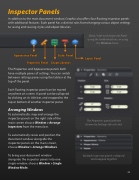
In addition to the main document window, Graphic also offers four  oating inspector panels with additional features. Each panel has a distinct role, from changing various object settings to saving and reusing styles and object libraries.
         Appearance Panel Properties Panel
Styles Panel Shape Libraries
Show / hide each Inspector Panel using the toolbar buttons, or using the Window menu.
Layers Panel
    The Properties and Appearance panels both have multiple panes of settings. You can switch between settings panes using the tab bar at the top of the panel.
Each  oating inspector panel can be moved anywhere on screen. A panel can be collapsed by clicking on its title bar, and snapped to the top or bottom of another inspector panel.
Arranging Windows
To automatically snap and arrange the inspector panels on the right side of the main screen choose Window > Arrange Inspectors from the menu bar.
To automatically resize and position the document window alongside the inspector panels on the main screen, choose Window > Arrange Windows.
To bring your document window alongside the inspector panels into one single window, choose Window > Single Window Mode.
The Properties panel with the Geometry Settings tab selected.
 Multiple inspector panels collapsed and snapped together
 22


