


Page 24 - Graphic Mac User Guide
P. 24
 Creating Layers
To create a new layer, click on the ‘Add Layer’ button (   ). A new empty layer will be created above the currently selected layer.
To change the name of a layer, simply double-click on the layer’s name  eld, to the right of its thumbnail.
Working with Multiple Layers
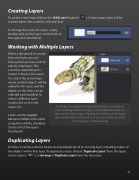
     When a document has more than one layer, you can choose the layer you wish to edit by selecting it. The currently selected layer is shown in blue in the Layers list, and is the active layer; newly created objects will be added to this layer, and the objects in this layer can be selected and modi ed. To select a different layer, simply click on it in the Layers list.
Layers can be toggled between hidden and visible using the visibility checkbox (to the left of the layer’s thumbnail).
Duplicating Layers
A common example for using multiple layers is tracing an imported image. When tracing, it can be helpful to draw in a layer on top of the image. Toggling the visibility of the image layer underneath can then be used to occasionally check the current progress of the drawing.
At times it can be useful to create an exact duplicate of an existing layer, including copies of the objects within that layer. To duplicate a layer, choose ’Duplicate Layer’ from the layers action menu (   ), or Arrange > Duplicate Layer from the menu bar.
  24


