


Page 52 - Graphic Mac User Guide
P. 52
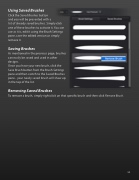
  Using Saved Brushes
Click the Saved Brushes button
and you will be presented with a
list of already saved brushes. Simply click one of these brushes to activate it. You can use as it is, edit it using the Brush Settings pane, save the edited version or simply remove it.
Saving Brushes
As mentioned in the previous page, brushes can easily be saved and used in other designs.
Once you have your new brush, click the Save Brush button from the Brush Settings pane and then switch to the Saved Brushes pane - your newly saved brush will show up in the top of the list.
Removing Saved Brushes
To remove a brush, simply right click on that speci c brush and then click Remove Brush.
 52


