


Page 84 - Graphic Mac User Guide
P. 84
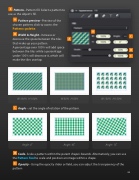
   Pattern - Pattern  ll. Select a pattern to use as the object’s  ll.
Pattern preview - Preview of the chosen pattern; click to access the Patterns palette.
Width & Height - Increase or decrease the space between the tiles that make up your pattern.
A percentage over 100% will add space between the tiles while a percentage under 100% will decrease it, which will make the tiles overlap.
W:100% H:100% W:50% H:50%
Angle - set the angle of rotation of the pattern.
Angle: 0˚ Angle: 45˚
Scale- Scale a pattern within the parent shape’s bounds. Alternatively, you can use
the Pattern Tool to scale and position an image within a shape.
Opacity - Using the opacity slider or  eld, you can adjust the transparency of the pattern
            W:150% H:150%
       Angle: 15˚
   84


