


Page 85 - Graphic Mac User Guide
P. 85
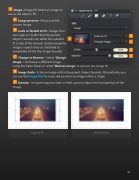
   Image - Image  ll. Select an image to use as the object’s  ll.
Image preview - Preview of the chosen image.
Scale or Stretch to Fit - Images that are larger or smaller than the parent object’s bounds can either be scaled to  t inside of the bounds (maintaining the image’s aspect ratio) or stretched to completely  ll the the shape’s bounds.
Change or Remove - Select ‘Change
Image...’ to choose a different image
using the Open Panel, or select ‘Remove Image’ to remove the image  ll.
Image Scale - Scale an image within the parent shape’s bounds. Alternatively, you can use the Image Tool to scale and position an image within a shape.
Opacity - Using the opacity slider or  eld, you can adjust the transparency of the image.
Scale to Fit Stretch to Fit
               85


