


Page 31 - 3E User Manual- updated 3-2018
P. 31
Time Capture


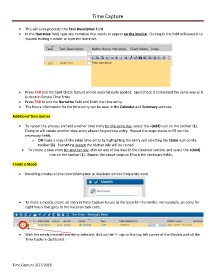
            •  This will auto-populate the Task Description field.
            •  In the Narrative field, type any narrative that needs to appear on the invoice.  Clicking in the field will cause it to
               expand making it easier to type the narrative.


            •  Press TAB and the Spell Check feature will be automatically applied.  Spell Check is completed the same way as it
               is done in Simple Time Entry.
            •  Press TAB to exit the Narrative field and finish the time entry.
            •  The hours information for the time entry can be seen in the Calendar and Summary sections.

        Additional Time Entries

            •  To repeat the process and add another time entry for the same day, select the +(Add) icon on the toolbar (1).
               Doing so will create another time entry above the previous entry.  Repeat the steps above to fill out the
               necessary fields.
                   o  OR make a copy of the initial time entry by highlighting the entry and selecting the Clone icon on the
                       toolbar (3).  Everything except the Matter info will be cloned.
             •  To create a time entry for another day, click on one of the days in the Calendar section, and select the +(Add)
                             icon on the toolbar (1).  Repeat the above steps to fill out the necessary fields.

        Create a Model

            •  Modeling creates a time record/template to duplicate entries frequently used.


            •  To make a model, create an entry in Time Capture to use as the basis for the model.  For example, an entry for
               eight hours that goes to the Vacation task code.


            •  With the newly created time entry selected, click on the ‘+’ sign in the top left corner of the Models part of the
               Time Capture dashboard.


        Time Capture 3/27/2018

