


Page 10 - Administrator Help Manual
P. 10
Help Manual
               ______________________________________________________________________________


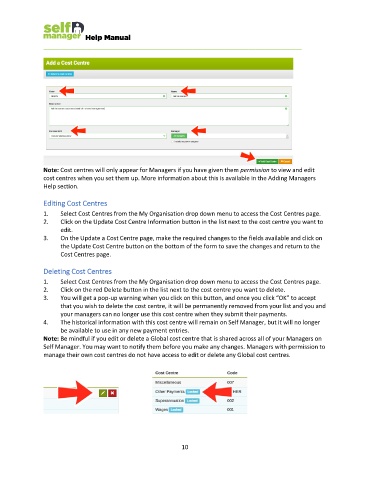
               Note: Cost centres will only appear for Managers if you have given them permission to view and edit
               cost centres when you set them up. More information about this is available in the Adding Managers
               Help section.

               Editing Cost Centres
               1.    Select Cost Centres from the My Organisation drop down menu to access the Cost Centres page.
               2.    Click on the Update Cost Centre Information button in the list next to the cost centre you want to
                     edit.
               3.    On the Update a Cost Centre page, make the required changes to the fields available and click on
                     the Update Cost Centre button on the bottom of the form to save the changes and return to the
                     Cost Centres page.

               Deleting Cost Centres
               1.    Select Cost Centres from the My Organisation drop down menu to access the Cost Centres page.
               2.    Click on the red Delete button in the list next to the cost centre you want to delete.
               3.    You will get a pop-up warning when you click on this button, and once you click “OK” to accept
                     that you wish to delete the cost centre, it will be permanently removed from your list and you and
                     your managers can no longer use this cost centre when they submit their payments.
               4.    The historical information with this cost centre will remain on Self Manager, but it will no longer
                     be available to use in any new payment entries.
               Note: Be mindful if you edit or delete a Global cost centre that is shared across all of your Managers on
               Self Manager. You may want to notify them before you make any changes. Managers with permission to
               manage their own cost centres do not have access to edit or delete any Global cost centres.


                                                             10

