


Page 8 - Administrator Help Manual
P. 8
Help Manual
               ______________________________________________________________________________

                     b.    Make sure the file is of a sufficient resolution and a valid image format, such as PNG, JPG, or
                           GIF.
                     c.    The logo will upload when you click on the Update organisation button on the bottom of
                           the page.
                     d.    You can repeat this upload process if you need to change the logo later on or if the logo is
                           not displaying properly for some reason (e.g. low resolution).
               3.    Next, add the contact information for key team members in your organisation along with their
                     role descriptions. This is for Manage It’s purposes (e.g. admin, accounts, management).
               4.    Add notification email address/es for Administrators who will receive and take action on email
                     notifications submitted by your clients from Self Manager such as new employee entries. Make
                     sure you update these as roles change in your organisation.
               5.    Add your organisation’s ABN number.
               6.    Add a Branch number for your ABN if this is applicable.
               7.    Add the NDIS Provider Number for your organisation if you are a registered provider with the
                     NDIS.

               Billing
               In order to use Self Manager, your organisation must provide valid billing details (Credit card
               information) on the Billing Details page. These can be edited at any time if necessary.

               Theme
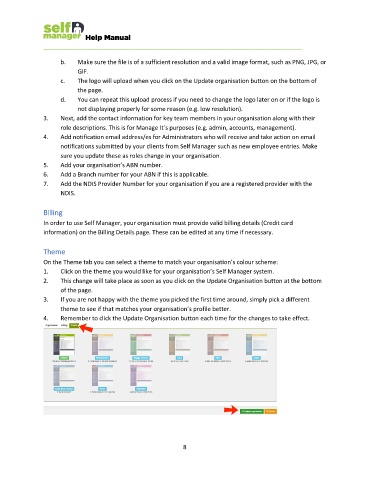
               On the Theme tab you can select a theme to match your organisation’s colour scheme:
               1.    Click on the theme you would like for your organisation’s Self Manager system.
               2.    This change will take place as soon as you click on the Update Organisation button at the bottom
                     of the page.
               3.    If you are not happy with the theme you picked the first time around, simply pick a different
                     theme to see if that matches your organisation’s profile better.
               4.    Remember to click the Update Organisation button each time for the changes to take effect.


                                                              8

