


Page 6 - Administrator Help Manual
P. 6
Help Manual
               ______________________________________________________________________________

               The Dashboard Page

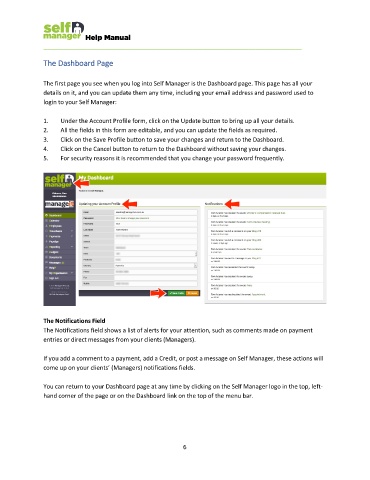
               The first page you see when you log into Self Manager is the Dashboard page. This page has all your
               details on it, and you can update them any time, including your email address and password used to
               login to your Self Manager:

               1.    Under the Account Profile form, click on the Update button to bring up all your details.
               2.    All the fields in this form are editable, and you can update the fields as required.
               3.    Click on the Save Profile button to save your changes and return to the Dashboard.
               4.    Click on the Cancel button to return to the Dashboard without saving your changes.
               5.    For security reasons it is recommended that you change your password frequently.


               The Notifications Field
               The Notifications field shows a list of alerts for your attention, such as comments made on payment
               entries or direct messages from your clients (Managers).

               If you add a comment to a payment, add a Credit, or post a message on Self Manager, these actions will
               come up on your clients’ (Managers) notifications fields.

               You can return to your Dashboard page at any time by clicking on the Self Manager logo in the top, left-
               hand corner of the page or on the Dashboard link on the top of the menu bar.


                                                              6

