


Page 400 - JoFA_2022
P. 400
a blank Excel workbook. You may have a
          file or multiple files that you use often. You
          can have Excel automatically open that file
          or files when you open Excel. To do this, go
          to File, Options, Advanced. Scroll down
          to General in the Excel Options window.
          Next to At startup, open all files in:, paste
          or type the name of the folder that contains
          the Excel file or files that you want opened
          automatically when opening Excel. Click
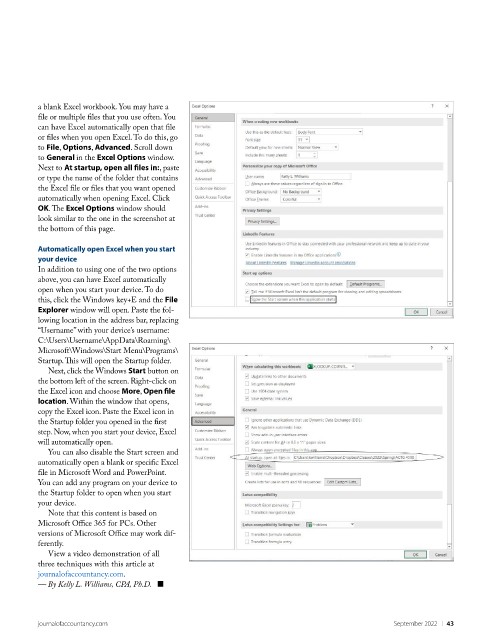
          OK. The Excel Options window should
          look similar to the one in the screenshot at
          the bottom of this page.

          Automatically open Excel when you start
          your device
          In addition to using one of the two options
          above, you can have Excel automatically
          open when you start your device. To do
          this, click the Windows key+E and the File
          Explorer window will open. Paste the fol-
          lowing location in the address bar, replacing
          “Username” with your device’s username:
          C:\Users\Username\AppData\Roaming\
          Microsoft\Windows\Start Menu\Programs\
          Startup. This will open the Startup folder.
            Next, click the Windows Start button on
          the bottom left of the screen. Right-click on
          the Excel icon and choose More, Open file
          location. Within the window that opens,
          copy the Excel icon. Paste the Excel icon in
          the Startup folder you opened in the first
          step. Now, when you start your device, Excel
          will automatically open.
            You can also disable the Start screen and
          automatically open a blank or specific Excel
          file in Microsoft Word and PowerPoint.
          You can add any program on your device to
          the Startup folder to open when you start
          your device.
            Note that this content is based on
          Microsoft Office 365 for PCs. Other
          versions of Microsoft Office may work dif-
          ferently.
            View a video demonstration of all
          three techniques with this article at
          journalofaccountancy.com.
          — By Kelly L. Williams, CPA, Ph.D.   ■


          journalofaccountancy.com                                                            September 2022    |   43

