


Page 534 - JoFA_2022
P. 534
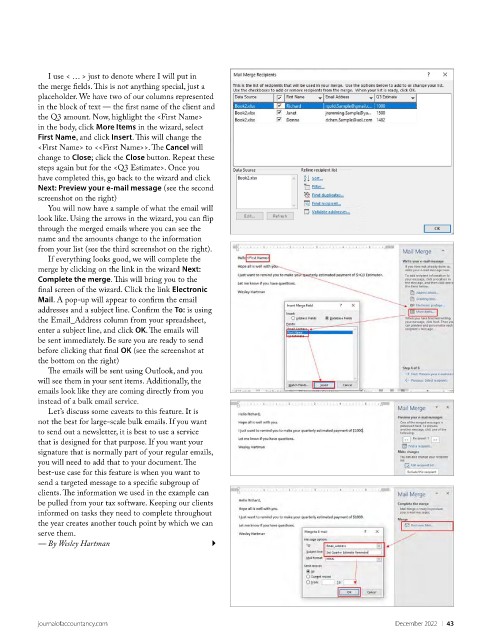
I use < … > just to denote where I will put in
          the merge fields. This is not anything special, just a
          placeholder. We have two of our columns represented
          in the block of text — the first name of the client and
          the Q3 amount. Now, highlight the <First Name>
          in the body, click More Items in the wizard, select
          First Name, and click Insert. This will change the
          <First Name> to <<First Name>>. The Cancel will
          change to Close; click the Close button. Repeat these
          steps again but for the <Q3 Estimate>. Once you
          have completed this, go back to the wizard and click
          Next: Preview your e-mail message (see the second
          screenshot on the right)
            You will now have a sample of what the email will
          look like. Using the arrows in the wizard, you can flip
          through the merged emails where you can see the
          name and the amounts change to the information
          from your list (see the third screenshot on the right).
            If everything looks good, we will complete the
          merge by clicking on the link in the wizard Next:
          Complete the merge. This will bring you to the
          final screen of the wizard. Click the link Electronic
          Mail. A pop-up will appear to confirm the email
          addresses and a subject line. Confirm the To: is using
          the Email_Address column from your spreadsheet,
          enter a subject line, and click OK. The emails will
          be sent immediately. Be sure you are ready to send
          before clicking that final OK (see the screenshot at
          the bottom on the right)
            The emails will be sent using Outlook, and you
          will see them in your sent items. Additionally, the
          emails look like they are coming directly from you
          instead of a bulk email service.
            Let’s discuss some caveats to this feature. It is
          not the best for large-scale bulk emails. If you want
          to send out a newsletter, it is best to use a service
          that is designed for that purpose. If you want your
          signature that is normally part of your regular emails,
          you will need to add that to your document. The
          best-use case for this feature is when you want to
          send a targeted message to a specific subgroup of
          clients. The information we used in the example can
          be pulled from your tax software. Keeping our clients
          informed on tasks they need to complete throughout
          the year creates another touch point by which we can
          serve them.
          — By Wesley Hartman


          journalofaccountancy.com                                                             December 2022    |   43

