


Page 535 - JoFA_2022
P. 535
TECHNOLOGY Q&A


         MICROSOFT EXCEL

         Automatically color-code cells in Microsoft Excel


         Q.  Is there a way    A. You can automatically have cells turn certain   Click the Quick Analysis icon and select Text
         to color-code    colors based on the text within those cells. This   Contains under the Formatting category. The
         cells based on   is easily done using one of the many types of   Text That Contains window will open. Enter one
         their cell content?   conditional formatting. Having cells color-coded   of the company types under Format cells that
         For example,     by the type of text they contain makes it much   contain the text:. I will enter Woman-Owned. To
         if cells state   easier for a user to identify cells containing specific   the right of that, next to with, click the drop-down
         “Woman-Owned,”   text, especially if there are many cells with that   arrow. You have some formatting options given,
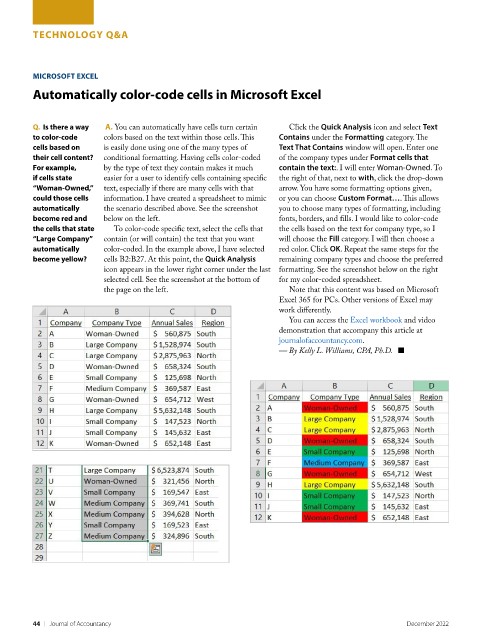
         could those cells   information. I have created a spreadsheet to mimic   or you can choose Custom Format…. This allows
         automatically    the scenario described above. See the screenshot   you to choose many types of formatting, including
         become red and   below on the left.                       fonts, borders, and fills. I would like to color-code
         the cells that state   To color-code specific text, select the cells that   the cells based on the text for company type, so I
         “Large Company”   contain (or will contain) the text that you want   will choose the Fill category. I will then choose a
         automatically    color-coded. In the example above, I have selected   red color. Click OK. Repeat the same steps for the
         become yellow?   cells B2:B27. At this point, the Quick Analysis   remaining company types and choose the preferred
                          icon appears in the lower right corner under the last  formatting. See the screenshot below on the right
                          selected cell. See the screenshot at the bottom of   for my color-coded spreadsheet.
                          the page on the left.                      Note that this content was based on Microsoft
                                                                   Excel 365 for PCs. Other versions of Excel may
                                                                   work differently.
                                                                     You can access the Excel workbook and video
                                                                   demonstration that accompany this article at
                                                                   journalofaccountancy.com.
                                                                   — By Kelly L. Williams, CPA, Ph.D.   ■


         44    |   Journal of Accountancy                                                        December 2022

