


Page 533 - JoFA_2022
P. 533
TECHNOLOGY Q&A


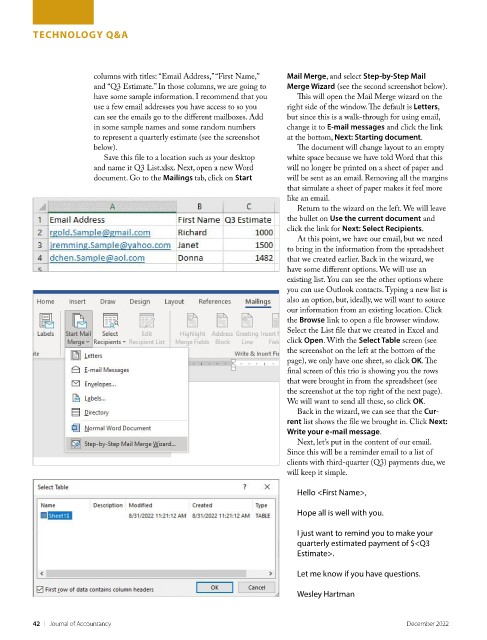
                       columns with titles: “Email Address,” “First Name,”   Mail Merge, and select Step-by-Step Mail
                       and “Q3 Estimate.” In those columns, we are going to   Merge Wizard (see the second screenshot below).
                       have some sample information. I recommend that you   This will open the Mail Merge wizard on the
                       use a few email addresses you have access to so you   right side of the window. The default is Letters,
                       can see the emails go to the different mailboxes. Add   but since this is a walk-through for using email,
                       in some sample names and some random numbers   change it to E-mail messages and click the link
                       to represent a quarterly estimate (see the screenshot   at the bottom, Next: Starting document.
                       below).                                         The document will change layout to an empty
                          Save this file to a location such as your desktop   white space because we have told Word that this
                       and name it Q3 List.xlsx. Next, open a new Word   will no longer be printed on a sheet of paper and
                       document. Go to the Mailings tab, click on Start   will be sent as an email. Removing all the margins
                                                                     that simulate a sheet of paper makes it feel more
                                                                     like an email.
                                                                       Return to the wizard on the left. We will leave
                                                                     the bullet on Use the current document and
                                                                     click the link for Next: Select Recipients.
                                                                       At this point, we have our email, but we need
                                                                     to bring in the information from the spreadsheet
                                                                     that we created earlier. Back in the wizard, we
                                                                     have some different options. We will use an
                                                                     existing list. You can see the other options where
                                                                     you can use Outlook contacts. Typing a new list is
                                                                     also an option, but, ideally, we will want to source
                                                                     our information from an existing location. Click
                                                                     the Browse link to open a file browser window.
                                                                     Select the List file that we created in Excel and
                                                                     click Open. With the Select Table screen (see
                                                                     the screenshot on the left at the bottom of the
                                                                     page), we only have one sheet, so click OK. The
                                                                     final screen of this trio is showing you the rows
                                                                     that were brought in from the spreadsheet (see
                                                                     the screenshot at the top right of the next page).
                                                                     We will want to send all these, so click OK.
                                                                       Back in the wizard, we can see that the Cur-
                                                                     rent list shows the file we brought in. Click Next:
                                                                     Write your e-mail message.
                                                                       Next, let’s put in the content of our email.
                                                                     Since this will be a reminder email to a list of
                                                                     clients with third-quarter (Q3) payments due, we
                                                                     will keep it simple.

                                                                       Hello <First Name>,

                                                                       Hope all is well with you.

                                                                       I just want to remind you to make your
                                                                       quarterly estimated payment of $<Q3
                                                                       Estimate>.

                                                                       Let me know if you have questions.

                                                                       Wesley Hartman


         42    |   Journal of Accountancy                                                        December 2022

