


Page 109 - Graphic Mac User Guide
P. 109
  Grid pane
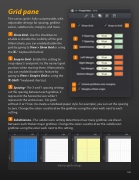
The canvas grid is fully customizable, with adjustable settings for spacing, gridline colors, subdivisions, margins, and more.
Show Grid - Use this checkbox to enable or disable the visibility of the grid. Alternatively, you can enable/disable the grid by going to View > Show Grid or using the ⌘-’ keyboard shortcut.
Snap to Grid - Enable this setting to snap objects and points to the nearest grid position when moving them. Alternatively, you can enable/disable this feature by going to View > Snap to Grid or using the ⌘-Shift-’ keyboard shortcut.
Spacing - The X and Y spacing settings
set the spacing between each gridline, X
represents the horizontal axis while Y
represents the vertical axis.. For grids
without X or Y lines (to create a notebook paper style, for example), you can set the spacing to zero. Change the colors used to draw the gridlines using the color wells next to each setting.
Subdivisions - The subdivisions setting determines how many gridlines are drawn between each thicker major gridlines. Change the colors used to draw the subdivision gridlines using the color wells next to this setting.
                Various grid settings
 109


