


Page 13 - Graphic Mac User Guide
P. 13
           Document Tabs
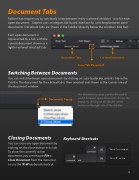
Rather than require you to constantly swap between many scattered windows - one for each open document - Graphic uses an elegant tab-based interface for switching between open documents. Document tabs are shown in the Tab Bar (directly below the window’s title bar).
Each open document is represented by a tab, with the current document shown as a lighter-colored ‘selected‘ tab.
Document Tabs Current Document Close Tab/Document
Switching Between Documents
You can switch between open documents by clicking on a particular document’s tab in the Tab Bar. The document for the clicked tab is then selected and shown in the Canvas area of the document window.
            Documents Popup
The documents popup can also be used to switch between open documents. Access the popup by clicking on the double-arrow button on the right side of the Tab Bar.
 Closing Documents
You can close any open document by clicking on the close button in its tab. To close the currently active document, you can choose File > Close Document from the menu bar or use the ⌘-W keyboard shortcut.
Keyboard Shortcuts
   Close Document Close Window
       13


