


Page 38 - Graphic Mac User Guide
P. 38
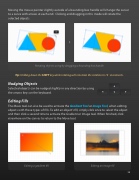
         Moving the mouse pointer slightly outside of a bounding box handle will change the cursor to a curve with arrows at each end. Clicking and dragging in this mode will rotate the selected objects.
      Rotating objects using by dragging a bounding box handle
Tip: Holding down the SHIFT key while rotating will constrain the rotation to 15˚ increments. Nudging Objects
Selected objects can be nudged slightly in any direction by using the arrows keys on the keyboard.
Editing Fills
The Move tool can also be used to activate the Gradient Tool or Image Tool, when editing objects with those types of  lls. To edit an object’s  ll, simply click once to select the object and then click a second time to activate the Gradient or Image tool. When  nished, click elsewhere on the canvas to return to the Move tool.
              Editing a gradient  ll Editing an image  ll
 38


