


Page 57 - Graphic Mac User Guide
P. 57
 Placing Text on Path
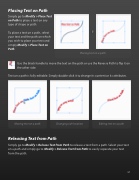
Simply go to Modify > Place Text on Path to place a text on any type of shape or path.
To place a text on a path, select your text and the path on which you wish to place your text and simply Modify > Place Text on Path.
      Placing text on a path
 Use the black handle to move the text on the path or use the Reverse Path to  ip it on the other side.
Text on a path is fully editable. Simply double click it to change its content or its attributes.
Moving text on a path Changing side location Editing text on a path
Releasing Text from Path
Simply go to Modify > Release Text from Path to release a text from a path. Select your text on a path and simply go to Modify > Release Text from Path to easily separate your text from the path.
       57


