


Page 123 - 3E User Manual- updated 3-2018
P. 123
Paperless Proforma Process


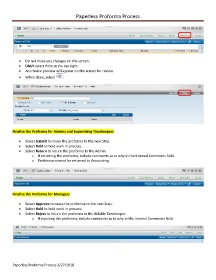
            •  Do not make any changes on this screen.
            •  ONLY select Print at the top right.
            •  An Invoice preview will appear on the screen for review.
            •  When done, select     :


        Finalize the Proforma for Admins and Supervising Timekeepers

            •  Select Submit to move the proforma to the next Step.
            •  Select Hold to hold work in process.
            •  Select Return to return the proforma to the Admin.
                   o  If returning the proforma, include comments as to why in the Internal Comments field.
                   o  Proformas cannot be returned to Accounting.


        Finalize the Proforma for Managers

            •  Select Approve to move the proforma to the next Step.
            •  Select Hold to hold work in process:
            •  Select Reject to return the proforma to the Billable Timekeeper.
                   o  If rejecting the proforma, include comments as to why in the Internal Comments field.


        Paperless Proforma Process 3/27/2018

