


Page 133 - Computer Graphics Handout
P. 133
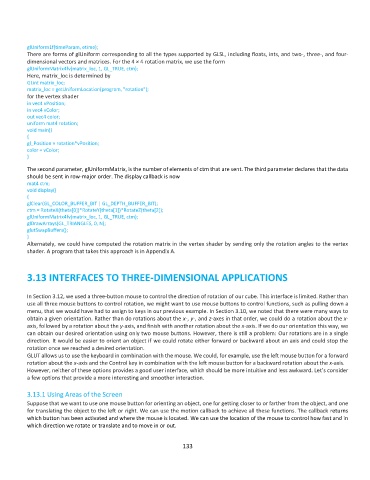
glUniform1f(timeParam, etime);
          There are forms of glUniform corresponding to all the types supported by GLSL, including floats, ints, and two-, three-, and four-
          dimensional vectors and matrices. For the 4 × 4 rotation matrix, we use the form
          glUniformMatrix4fv(matrix_loc, 1, GL_TRUE, ctm);
          Here, matrix_loc is determined by
          GLint matrix_loc;
          matrix_loc = getUniformLocation(program, "rotation");
          for the vertex shader
          in vec4 vPosition;
          in vec4 vColor;
          out vec4 color;
          uniform mat4 rotation;
          void main()
          {
          gl_Position = rotation*vPosition;
          color = vColor;
          }
          The second parameter, glUniformMatrix, is the number of elements of ctm that are sent. The third parameter declares that the data
          should be sent in row-major order. The display callback is now
          mat4 ctm;
          void display()
          {
          glClear(GL_COLOR_BUFFER_BIT | GL_DEPTH_BUFFER_BIT);
          ctm = RotateX(theta[0])*RotateY(theta[1])*RotateZ(theta[2]);
          glUniformMatrix4fv(matrix_loc, 1, GL_TRUE, ctm);
          glDrawArrays(GL_TRIANGLES, 0, N);
          glutSwapBuffers();
          }
          Alternately, we could have computed the rotation matrix in the vertex shader by sending only the rotation angles to the vertex
          shader. A program that takes this approach is in Appendix A.


          3.13 INTERFACES TO THREE-DIMENSIONAL APPLICATIONS


          In Section 3.12, we used a three-button mouse to control the direction of rotation of our cube. This interface is limited. Rather than
          use all three mouse buttons to control rotation, we might want to use mouse buttons to control functions, such as pulling down a
          menu, that we would have had to assign to keys in our previous example. In Section 3.10, we noted that there were many ways to
          obtain a given orientation. Rather than do rotations about the x-, y-, and z-axes in that order, we could do a rotation about the x-
          axis, followed by a rotation about the y-axis, and finish with another rotation about the x-axis. If we do our orientation this way, we
          can obtain our desired orientation using only two mouse buttons. However, there is still a problem: Our rotations are in a single
          direction. It would be easier to orient an object if we could rotate either forward or backward about an axis and could stop the
          rotation once we reached a desired orientation.
          GLUT allows us to use the keyboard in combination with the mouse. We could, for example, use the left mouse button for a forward
          rotation about the x-axis and the Control key in combination with the left mouse button for a backward rotation about the x-axis.
          However, neither of these options provides a good user interface, which should be more intuitive and less awkward. Let’s consider
          a few options that provide a more interesting and smoother interaction.

          3.13.1 Using Areas of the Screen
          Suppose that we want to use one mouse button for orienting an object, one for getting closer to or farther from the object, and one
          for translating the object to the left or right. We can use the motion callback to achieve all these functions. The callback returns
          which button has been activated and where the mouse is located. We can use the location of the mouse to control how fast and in
          which direction we rotate or translate and to move in or out.


                                                             133

