


Page 83 - Computer Basics - Research
P. 83
Place your cursor where you want the footnote to appear. By default, footnotes will be designated by increasing
               superscript numbers. Place the cursor where you want the number to appear.  Then click on the “Insert
               footnote” icon.  This is in the "Footnotes" section of the "References" tab. The footnote number will be inserted,
               and a separator bar will be added to the bottom of the page. Your cursor will automatically be taken to the
               footnote at the bottom of the page so that you can fill it out.
               •  An endnote is like a footnote except that the reference occurs at the end of the document. By default,
                  endnotes are numbered with Roman numerals (i, ii, iii, etc.).
               •  Alternatively, you can press Ctrl + Alt + F to create a footnote or Ctrl + Alt + D to create an endnote.


               Change when your footnote numbering resets. By default, your footnotes will increase in number throughout
               your whole document. You can change this so that the numbers restart every page or at section breaks in the
               document.  To do so….

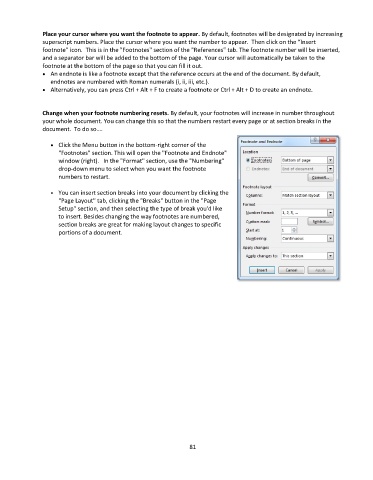
                  •  Click the Menu button in the bottom-right corner of the
                     "Footnotes" section. This will open the "Footnote and Endnote"
                     window (right).   In the "Format" section, use the "Numbering"
                     drop-down menu to select when you want the footnote
                     numbers to restart.

                  •  You can insert section breaks into your document by clicking the
                     "Page Layout" tab, clicking the "Breaks" button in the "Page
                     Setup" section, and then selecting the type of break you'd like
                     to insert. Besides changing the way footnotes are numbered,
                     section breaks are great for making layout changes to specific
                     portions of a document.


                                                                 81

