


Page 182 - Computer Graphics Handout
P. 182
Not only are we sending less data and requiring less of the GPU’s memory, but the GPU will render the triangles much faster as a
          triangle strip as opposed to individual triangles. For a 1× M mesh, we can easily construct the array for a triangle strip.
          For an N × M mesh, the process is more complex. Although it would be simple to repeat the process for the 1× M mesh N times,
          setting up N triangle strips, this approach would have us repeatedly sending data to the GPU. What we need is a single triangle strip
          for the entire mesh. Exercises 4.22 and 4.23 outline two approaches.

          4.9.3 Walking Through a Scene
          The next step is to specify the camera and add interactivity. In this version, we use perspective viewing, and we allow the viewer to
          move the camera by pressing the x, X, y, Y, z, and Z keys on the keyboard, but we have the camera always pointing at the center of
          the cube. The LookAt function provides a simple way to reposition and reorient the camera. The changes that we have to make to
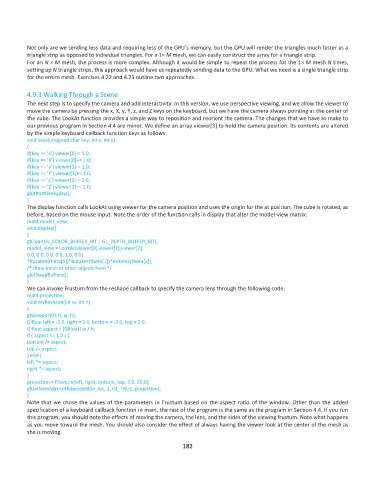
          our previous program in Section 4.4 are minor. We define an array viewer[3] to hold the camera position. Its contents are altered
          by the simple keyboard callback function keys as follows:
          void keys(unsigned char key, int x, int y)
          {
          if(key == ’x’) viewer[0]-= 1.0;
          if(key == ’X’) viewer[0]+= 1.0;
          if(key == ’y’) viewer[1]-= 1.0;
          if(key == ’Y’) viewer[1]+= 1.0;
          if(key == ’z’) viewer[2]-= 1.0;
          if(key == ’Z’) viewer[2]+= 1.0;
          glutPostRedisplay();
          }
          The display function calls LookAt using viewer for the camera position and uses the origin for the at position. The cube is rotated, as
          before, based on the mouse input. Note the order of the function calls in display that alter the model-view matrix:
          mat4 model_view;
          void display()
          {
          glClear(GL_COLOR_BUFFER_BIT | GL_DEPTH_BUFFER_BIT);
          model_view = LookAt(viewer[0],viewer[1],viewer[2],
          0.0, 0.0, 0.0, 0.0, 1.0, 0.0)
          *RotateX(theta[0])*RotateY(theta[1])*RotateZ(theta[2]);
          /* draw mesh or other objects here */
          glutSwapBuffers();
          }
          We can invoke Frustum from the reshape callback to specify the camera lens through the following code:
          mat4 projection;
          void myReshape(int w, int h)
          {
          glViewport(0, 0, w, h);
          Glfloat left = -2.0, right = 2.0, bottom = -2.0, top = 2.0;
          Glfloat aspect = (Glfloat) w / h;
          if ( aspect <= 1.0 ) {
          bottom /= aspect;
          top /= aspect;
          } else {
          left *= aspect;
          right *= aspect;
          }
          projection = Frustum(left, right, bottom, top, 2.0, 20.0);
          glUniformMatrix4fv(projection_loc, 1, GL_TRUE, projection);
          }
          Note that we chose the values of the parameters in Frustum based on the aspect ratio of the window. Other than the added
          specification of a keyboard callback function in main, the rest of the program is the same as the program in Section 4.4. If you run
          this program, you should note the effects of moving the camera, the lens, and the sides of the viewing frustum. Note what happens
          as you move toward the mesh. You should also consider the effect of always having the viewer look at the center of the mesh as
          she is moving.

                                                             182

