


Page 10 - Computer Basics - Research
P. 10
The Desktop of your computer.

                                                         Your computer will probably have some icons on the desktop,
                                                         with some words under each icon, normally on the left side of
                                                         the desktop.  It will also have a toolbar at the bottom of the
                                                         screen.  Normally, users place icons of the most used
                                                         programs in this toolbar.  They can even be arranged in order.
                                                         To move them, click on an icon, then move it from left to right
                                                         or vice versa.  When you release the mouse click, the icon will
                                                         remain where you last left it.  Later, we will learn how to
                                                         place the programs you desire to use on this toolbar.

           Your desktop is a handy screen.  You can place things on your desktop.  You can
           download files from the internet or from emails and place them on the desktop.
           You can place icons of programs you use often on the desktop.  The problem is
           that sometimes our desktops become cluttered with far too many objects,
           making it difficult to find things.  The solution is to make a folder to consolidate
           items.  A rule of thumb is that you should have no more than ¼ of your desktop
           filled with objects.  If you have more, you need to reorganize it and simplify it.

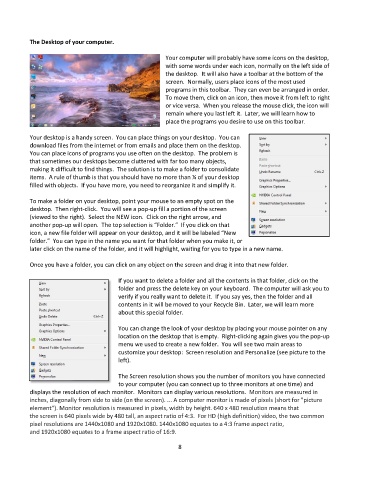
           To make a folder on your desktop, point your mouse to an empty spot on the
           desktop.  Then right-click.  You will see a pop-up fill a portion of the screen
           (viewed to the right).  Select the NEW icon.  Click on the right arrow, and
           another pop-up will open.  The top selection is “Folder.”  If you click on that
           icon, a new file folder will appear on your desktop, and it will be labeled “New
           folder.”  You can type in the name you want for that folder when you make it, or
           later click on the name of the folder, and it will highlight, waiting for you to type in a new name.

           Once you have a folder, you can click on any object on the screen and drag it into that new folder.

                                         If you want to delete a folder and all the contents in that folder, click on the
                                         folder and press the delete key on your keyboard.  The computer will ask you to
                                         verify if you really want to delete it.  If you say yes, then the folder and all
                                         contents in it will be moved to your Recycle Bin.  Later, we will learn more
                                         about this special folder.

                                         You can change the look of your desktop by placing your mouse pointer on any
                                         location on the desktop that is empty.  Right-clicking again gives you the pop-up
                                         menu we used to create a new folder.  You will see two main areas to
                                         customize your desktop:  Screen resolution and Personalize (see picture to the
                                         left).

                                         The Screen resolution shows you the number of monitors you have connected
                                         to your computer (you can connect up to three monitors at one time) and
           displays the resolution of each monitor.  Monitors can display various resolutions.  Monitors are measured in
           inches, diagonally from side to side (on the screen). ... A computer monitor is made of pixels (short for "picture
           element"). Monitor resolution is measured in pixels, width by height. 640 x 480 resolution means that
           the screen is 640 pixels wide by 480 tall, an aspect ratio of 4:3.  For HD (high definition) video, the two common
           pixel resolutions are 1440x1080 and 1920x1080. 1440x1080 equates to a 4:3 frame aspect ratio,
           and 1920x1080 equates to a frame aspect ratio of 16:9.

                                                             8

