


Page 11 - Computer Basics - Research
P. 11
The more pixels that a monitor can display, the crisper the image will appear.  In fact, some monitors and TVs are
               able to display in 4K UHD (ultra-high density), which has a considerably higher resolution than 1080 HD video.  4K
               has a resolution of 3840 x 2160 while HD consists of 1920 x 1080 pixels.  4K or UHD is four times as sharp as HD
               quality, but of course, it comes at a cost.  Tech fans crazy for sharper resolution are sometimes paying for more
               pixels than their eyes can actually see. ... The number of pixels is quadrupled for 4K TVs or monitors, but experts
               say that in most cases, the human eye cannot even perceive the difference.  So, don’t pay for something that you
               cannot see!

               Back to setting your screen resolution.  If you lower your resolution, the objects on your screen will get larger.
               Most monitors like to run at a fixed resolution, which normally will be displayed as “recommended.”  For the
               most part, you want to run your monitor resolution at its recommended resolution.

               In the personalize popup, you can change the background image that you see on the desktop.  Perhaps you want
               a picture of your girlfriend or wife on the screen, or your family, or your dog, or a scenic picture that you took.
               You can select a theme that the authors have created, or you can select your own picture by selecting Desktop
               Background at the bottom of the pop-up.   In the display section, you can adjust the size of images on your
               desktop WITHOUT altering your screen resolution (recommended).  Windows allows you to change from 100%
               size to 125% or 150% (for those who need glasses to read their desktop images).  You can adjust the brightness of
               your screen or connect it to a projector.  It is here that you control the display of all images on your desktop.

               THE KEYBOARD AND MOUSE
               Keyboard Commands


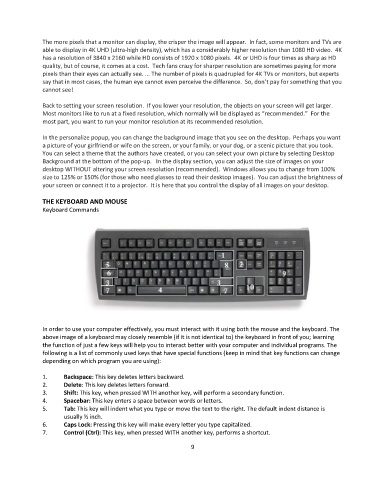
               In order to use your computer effectively, you must interact with it using both the mouse and the keyboard. The
               above image of a keyboard may closely resemble (if it is not identical to) the keyboard in front of you; learning
               the function of just a few keys will help you to interact better with your computer and individual programs. The
               following is a list of commonly used keys that have special functions (keep in mind that key functions can change
               depending on which program you are using):

               1.      Backspace: This key deletes letters backward.
               2.      Delete: This key deletes letters forward.
               3.      Shift: This key, when pressed WITH another key, will perform a secondary function.
               4.      Spacebar: This key enters a space between words or letters.
               5.      Tab: This key will indent what you type or move the text to the right. The default indent distance is
                       usually ½ inch.
               6.      Caps Lock: Pressing this key will make every letter you type capitalized.
               7.      Control (Ctrl): This key, when pressed WITH another key, performs a shortcut.

                                                                  9

