


Page 9 - Computer Basics - Research
P. 9
of. There are many different versions of Microsoft Windows, and a new version is released every couple of years
               (just like car models).

               There are other operating systems as well. Apple manufactures a computer called a Macintosh, or Mac. Macs use
               an operating system called “Mac OS X,” which, while it looks very different from Microsoft Windows, runs using
               the same basic principles. While fewer people use Macs than PCs, schools often use Macs, as well as people who
               work with graphic design, video, and image editing.  As a general rule, Macs tend to be more expensive than PCs.

               You shouldn’t ever need to mess with the operating system. It should run correctly and without error for as long
               as you have your computer. In fact, if you ever take your computer in for a repair, the technician will be looking
               primarily at your operating system (not your programs), in the same way that a mechanic will look at your car’s
               engine.

               The operating system of your computer is so important that any computer you buy will be sold with one already
               installed and ready to go (so outside of choosing between a PC and a Mac, you don’t really need to worry about
               the operating system except to make sure you get the newest or most appropriate version). In addition, popular
               software programs are also often already installed on computers, so all you must do is plug your computer in and
               go!

               Using the Computer.

               Turning on the Computer
               Most computers have a power switch located on the body of the computer, either at the top or on the front
               panel.  Push this switch to turn on (also called power up or boot) your computer.

               Sleep Mode or Hibernating Mode: Most computers have a mode called “Sleep or Hibernate” in which the
               computer is on, but has assumed an energy-efficient, minimal power mode. To “wake” the computer, simply
               move the mouse around or press the space bar on the keyboard, and it will “wake up” and return to the exact
               same place that it was when it went to sleep. In other words, if you were using a word processing program and
               the computer went to sleep, it would return to exactly what you were working on when it woke up.

               Logging On
               Once you turn the computer on, the computer will go through a series
               of automated tasks before it is ready for you to interact with it; this
               process is called “startup.” This process will last between one and two
               minutes. If the computer is not working correctly, you may see an error
               message during startup. If the computer is performing as it should,
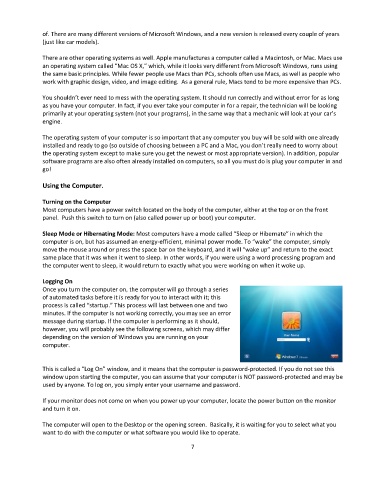
               however, you will probably see the following screens, which may differ
               depending on the version of Windows you are running on your
               computer.


               This is called a “Log On” window, and it means that the computer is password-protected. If you do not see this
               window upon starting the computer, you can assume that your computer is NOT password-protected and may be
               used by anyone. To log on, you simply enter your username and password.

               If your monitor does not come on when you power up your computer, locate the power button on the monitor
               and turn it on.

               The computer will open to the Desktop or the opening screen.  Basically, it is waiting for you to select what you
               want to do with the computer or what software you would like to operate.

                                                                  7

