


Page 15 - Computer Basics - Research
P. 15
In the picture above, there are several programs running. Each program that is open is represented by a “button”
               on the Taskbar that has a shadow square around it. To use one of the programs that is “open,” simply left click on
               it once to bring it up to the top of the screen. The taskbar is modeled after what might happen in real life: You
               are reading the newspaper, and you put it down to pick up your favorite book. You didn’t throw it out or destroy
               it, you simply set it aside. This way, you can pick up right where you left off once you are done reading your book.
               The taskbar works the same way, but with software
               programs, not books.

               Using the Control Panel
               The Control Panel is a component of Microsoft Windows that
               provides the ability to view and change system settings. It
               consists of a set of applets that include adding or removing
               hardware and software, controlling user accounts, changing
               accessibility options, and accessing networking settings.

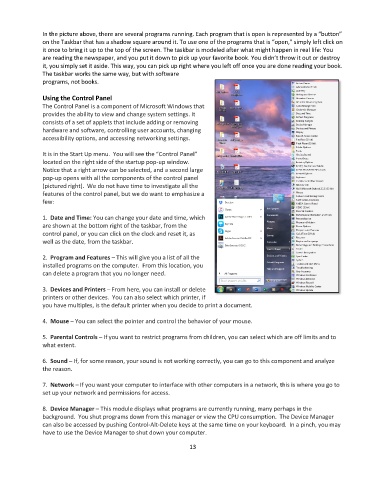
               It is in the Start Up menu.  You will see the “Control Panel”
               located on the right side of the startup pop-up window.
               Notice that a right arrow can be selected, and a second large
               pop-up opens with all the components of the control panel
               (pictured right).  We do not have time to investigate all the
               features of the control panel, but we do want to emphasize a
               few:

               1.  Date and Time: You can change your date and time, which
               are shown at the bottom right of the taskbar, from the
               control panel, or you can click on the clock and reset it, as
               well as the date, from the taskbar.

               2.  Program and Features – This will give you a list of all the
               installed programs on the computer.  From this location, you
               can delete a program that you no longer need.

               3.  Devices and Printers – From here, you can install or delete
               printers or other devices.  You can also select which printer, if
               you have multiples, is the default printer when you decide to print a document.

               4.  Mouse – You can select the pointer and control the behavior of your mouse.

               5.  Parental Controls – If you want to restrict programs from children, you can select which are off limits and to
               what extent.

               6.  Sound – If, for some reason, your sound is not working correctly, you can go to this component and analyze
               the reason.

               7.  Network – If you want your computer to interface with other computers in a network, this is where you go to
               set up your network and permissions for access.

               8.  Device Manager – This module displays what programs are currently running, many perhaps in the
               background.  You shut programs down from this manager or view the CPU consumption.  The Device Manager
               can also be accessed by pushing Control-Alt-Delete keys at the same time on your keyboard.  In a pinch, you may
               have to use the Device Manager to shut down your computer.

                                                                 13

