


Page 19 - Computer Basics - Research
P. 19
Often, smartphones are connected to the internet.  The smartphone can be set up to become a “hot-spot” which
               allows a WiFi connection to another device like a desktop, laptop, tablet computer, or another smartphone.  In
               becoming a “hot spot,” the phone shares the internet connection with all connected devices.  If you are paying
               for the data usage on your phone, when others connect to your phone as a “hot spot”, they are consuming your
               data.  So be careful who you let connect to your phone…you may find your data all gone in no time.

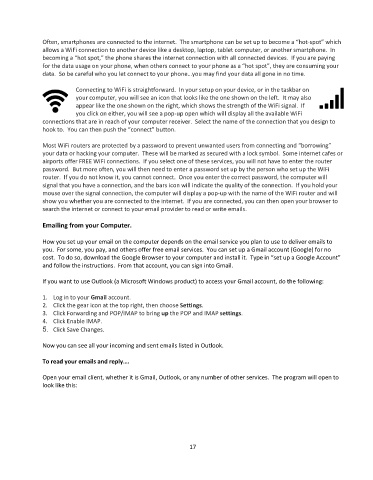
                           Connecting to WiFi is straightforward.  In your setup on your device, or in the taskbar on
                           your computer, you will see an icon that looks like the one shown on the left.  It may also
                           appear like the one shown on the right, which shows the strength of the WiFi signal.  If
                           you click on either, you will see a pop-up open which will display all the available WiFi
               connections that are in reach of your computer receiver.  Select the name of the connection that you design to
               hook to.  You can then push the “connect” button.

               Most WiFi routers are protected by a password to prevent unwanted users from connecting and “borrowing”
               your data or hacking your computer.  These will be marked as secured with a lock symbol.  Some internet cafes or
               airports offer FREE WiFi connections.  If you select one of these services, you will not have to enter the router
               password.  But more often, you will then need to enter a password set up by the person who set up the WiFi
               router.  If you do not know it, you cannot connect.  Once you enter the correct password, the computer will
               signal that you have a connection, and the bars icon will indicate the quality of the connection.  If you hold your
               mouse over the signal connection, the computer will display a pop-up with the name of the WiFi router and will
               show you whether you are connected to the internet.  If you are connected, you can then open your browser to
               search the internet or connect to your email provider to read or write emails.

               Emailing from your Computer.

               How you set up your email on the computer depends on the email service you plan to use to deliver emails to
               you.  For some, you pay, and others offer free email services.  You can set up a Gmail account (Google) for no
               cost.  To do so, download the Google Browser to your computer and install it.  Type in “set up a Google Account”
               and follow the instructions.  From that account, you can sign into Gmail.

               If you want to use Outlook (a Microsoft Windows product) to access your Gmail account, do the following:

               1.  Log in to your Gmail account.
               2.  Click the gear icon at the top right, then choose Settings.
               3.  Click Forwarding and POP/IMAP to bring up the POP and IMAP settings.
               4.  Click Enable IMAP.
               5.  Click Save Changes.

               Now you can see all your incoming and sent emails listed in Outlook.

               To read your emails and reply….

               Open your email client, whether it is Gmail, Outlook, or any number of other services.  The program will open to
               look like this:


                                                                 17

