


Page 22 - Computer Basics - Research
P. 22
When you copy a file to your computer or generate information by using a program, normally you want to save
           that information for future use.  When you click on the SAVE button, the information you created is saved to your
           hard disk or solid-state drive in your computer.  Your computer will ask you to give the project a name, which is
           followed by a period, then three letters.  Normally, the last three or four letters are already there, so just
           concentrate on the file name.  Here are some suggestions for naming files:

           1.  Be descriptive. It can be as short or long as you desire.
           2.  Be consistent. ...
           3.  Use lowercase letters only. ...
           4.  Don't use special characters which are #, $, %, &, /, \. *, +, comma, =, and about 26 more.  Your computer will
                   complain if you try to use a special character when naming a file.
           5.  Use dates in your file names. But don’t forget you cannot use forward or backslashes.
           6.  Use version numbers in files you create.  This is optional.

           If you delete a file, it may disappear from the screen, but it is not yet deleted.  It was moved to the Recycle Bin.
           The file is still taking up disk space and is not finally deleted until you empty your recycle bin.  To do so, click on
           the recycle bin icon located on your desktop.  If it is not on your desktop, open your start button and in the
           bottom search field, type in “recycle bin.”  It will open to display all the files you have deleted since the last time
           you emptied it.  Click on “Empty the Recycle Bin” at the top of the pop-up.  Now you have truly deleted all the
           files and released disk space for some other files to occupy it.

                                                   You are limited by the size of your hard drive or solid-state drive to
                                                   how much data you can store on the disk.  Most disks today can hold
                                                   250 GB of data or more.  If you create Word files, you probably will
                                                   never run out of space.  But if you work with audio or video files, you
                                                   can eat up that much space in no time.  So, how do you find out how
                                                   much room is left on your drives?

                                                   It’s easy.  Click on or locate Windows Explorer.  This program is
                                                   normally located in your bottom taskbar.  It looks like a file folder
                                                   and is used to locate and save files.  On the left side, you will see a
                                                   menu of items in your computer, including a menu for your
                                                   “Computer.”  Within the computer heading is your Local Disk
                                                   (normally C).  If you right-click on the Local Drive item, a popup will
                                                   open which will open.  Select
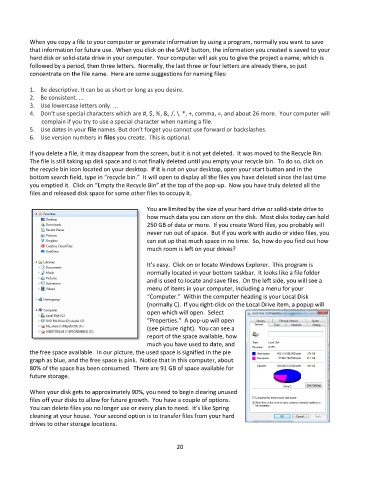
                                                   “Properties.”  A pop-up will open
                                                   (see picture right).  You can see a
                                                   report of the space available, how
                                                   much you have used to date, and
           the free space available.  In our picture, the used space is signified in the pie
           graph as blue, and the free space is pink.  Notice that in this computer, about
           80% of the space has been consumed.  There are 91 GB of space available for
           future storage.

           When your disk gets to approximately 90%, you need to begin clearing unused
           files off your disks to allow for future growth.  You have a couple of options.
           You can delete files you no longer use or every plan to need.  It’s like Spring
           cleaning at your house.  Your second option is to transfer files from your hard
           drives to other storage locations.


                                                             20

