


Page 27 - Computer Basics - Research
P. 27
Formatting

               Formatting the Document
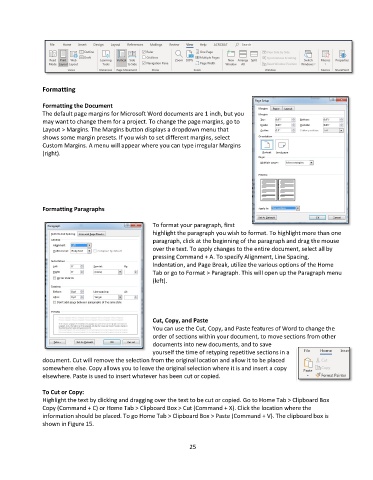
               The default page margins for Microsoft Word documents are 1 inch, but you
               may want to change them for a project. To change the page margins, go to
               Layout > Margins. The Margins button displays a dropdown menu that
               shows some margin presets. If you wish to set different margins, select
               Custom Margins. A menu will appear where you can type irregular Margins
               (right).


               Formatting Paragraphs

                                                     To format your paragraph, first
                                                     highlight the paragraph you wish to format. To highlight more than one
                                                     paragraph, click at the beginning of the paragraph and drag the mouse
                                                     over the text. To apply changes to the entire document, select all by
                                                     pressing Command + A. To specify Alignment, Line Spacing,
                                                     Indentation, and Page Break, utilize the various options of the Home
                                                     Tab or go to Format > Paragraph. This will open up the Paragraph menu
                                                     (left).


                                                     Cut, Copy, and Paste
                                                     You can use the Cut, Copy, and Paste features of Word to change the
                                                     order of sections within your document, to move sections from other
                                                     documents into new documents, and to save
                                                     yourself the time of retyping repetitive sections in a
               document. Cut will remove the selection from the original location and allow it to be placed
               somewhere else. Copy allows you to leave the original selection where it is and insert a copy
               elsewhere. Paste is used to insert whatever has been cut or copied.

               To Cut or Copy:
               Highlight the text by clicking and dragging over the text to be cut or copied. Go to Home Tab > Clipboard Box
               Copy (Command + C) or Home Tab > Clipboard Box > Cut (Command + X). Click the location where the
               information should be placed. To go Home Tab > Clipboard Box > Paste (Command + V). The clipboard box is
               shown in Figure 15.


                                                                 25

