


Page 30 - Computer Basics - Research
P. 30
Pictures
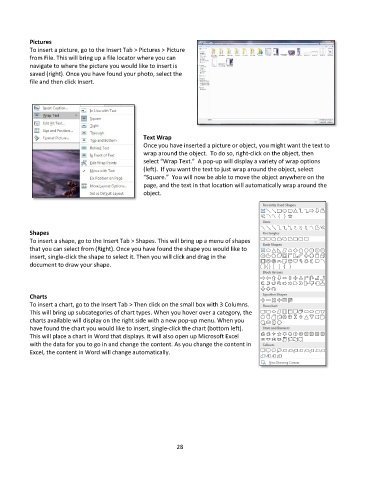
           To insert a picture, go to the Insert Tab > Pictures > Picture
           from File. This will bring up a file locator where you can
           navigate to where the picture you would like to insert is
           saved (right). Once you have found your photo, select the
           file and then click Insert.


                                                 Text Wrap
                                                 Once you have inserted a picture or object, you might want the text to
                                                 wrap around the object.  To do so, right-click on the object, then
                                                 select “Wrap Text.”  A pop-up will display a variety of wrap options
                                                 (left).  If you want the text to just wrap around the object, select
                                                 “Square.”  You will now be able to move the object anywhere on the
                                                 page, and the text in that location will automatically wrap around the
                                                 object.


           Shapes
           To insert a shape, go to the Insert Tab > Shapes. This will bring up a menu of shapes
           that you can select from (Right). Once you have found the shape you would like to
           insert, single-click the shape to select it. Then you will click and drag in the
           document to draw your shape.


           Charts
           To insert a chart, go to the Insert Tab > Then click on the small box with 3 Columns.
           This will bring up subcategories of chart types. When you hover over a category, the
           charts available will display on the right side with a new pop-up menu. When you
           have found the chart you would like to insert, single-click the chart (bottom left).
           This will place a chart in Word that displays. It will also open up Microsoft Excel
           with the data for you to go in and change the content. As you change the content in
           Excel, the content in Word will change automatically.


                                                             28

