


Page 35 - Computer Basics - Research
P. 35
Saving Your Document.
               Computers crash and documents are lost all the time, so it is best to save often.

               Saving Initially
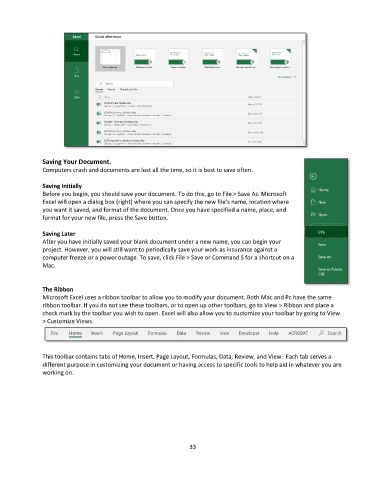
               Before you begin, you should save your document. To do this, go to File > Save As. Microsoft
               Excel will open a dialog box (right) where you can specify the new file’s name, location where
               you want it saved, and format of the document. Once you have specified a name, place, and
               format for your new file, press the Save button.

               Saving Later
               After you have initially saved your blank document under a new name, you can begin your
               project. However, you will still want to periodically save your work as insurance against a
               computer freeze or a power outage. To save, click File > Save or Command S for a shortcut on a
               Mac.


               The Ribbon
               Microsoft Excel uses a ribbon toolbar to allow you to modify your document. Both Mac and Pc have the same
               ribbon toolbar. If you do not see these toolbars, or to open up other toolbars, go to View > Ribbon and place a
               check mark by the toolbar you wish to open. Excel will also allow you to customize your toolbar by going to View
               > Customize Views.


               This toolbar contains tabs of Home, Insert, Page Layout, Formulas, Data, Review, and View.  Each tab serves a
               different purpose in customizing your document or having access to specific tools to help aid in whatever you are
               working on.


                                                                 33

