


Page 38 - Computer Basics - Research
P. 38
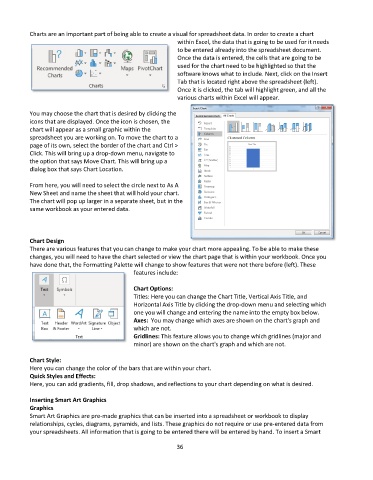
Charts are an important part of being able to create a visual for spreadsheet data. In order to create a chart
                                                             within Excel, the data that is going to be used for it needs
                                                             to be entered already into the spreadsheet document.
                                                             Once the data is entered, the cells that are going to be
                                                             used for the chart need to be highlighted so that the
                                                             software knows what to include. Next, click on the Insert
                                                             Tab that is located right above the spreadsheet (left).
                                                             Once it is clicked, the tab will highlight green, and all the
                                                             various charts within Excel will appear.

           You may choose the chart that is desired by clicking the
           icons that are displayed. Once the icon is chosen, the
           chart will appear as a small graphic within the
           spreadsheet you are working on. To move the chart to a
           page of its own, select the border of the chart and Ctrl >
           Click. This will bring up a drop-down menu, navigate to
           the option that says Move Chart. This will bring up a
           dialog box that says Chart Location.

           From here, you will need to select the circle next to As A
           New Sheet and name the sheet that will hold your chart.
           The chart will pop up larger in a separate sheet, but in the
           same workbook as your entered data.


           Chart Design
           There are various features that you can change to make your chart more appealing. To be able to make these
           changes, you will need to have the chart selected or view the chart page that is within your workbook. Once you
           have done that, the Formatting Palette will change to show features that were not there before (left). These
                                              features include:

                                              Chart Options:
                                              Titles: Here you can change the Chart Title, Vertical Axis Title, and
                                              Horizontal Axis Title by clicking the drop-down menu and selecting which
                                              one you will change and entering the name into the empty box below.
                                              Axes:  You may change which axes are shown on the chart's graph and
                                              which are not.
                                              Gridlines: This feature allows you to change which gridlines (major and
                                              minor) are shown on the chart's graph and which are not.

           Chart Style:
           Here you can change the color of the bars that are within your chart.
           Quick Styles and Effects:
           Here, you can add gradients, fill, drop shadows, and reflections to your chart depending on what is desired.

           Inserting Smart Art Graphics
           Graphics
           Smart Art Graphics are pre-made graphics that can be inserted into a spreadsheet or workbook to display
           relationships, cycles, diagrams, pyramids, and lists. These graphics do not require or use pre-entered data from
           your spreadsheets. All information that is going to be entered there will be entered by hand. To insert a Smart

                                                             36

