


Page 40 - Computer Basics - Research
P. 40
Writing Your Own Formulas.

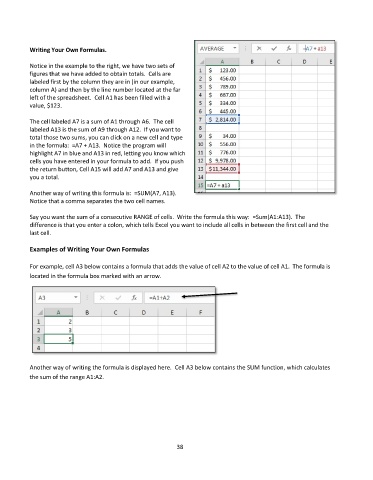
           Notice in the example to the right, we have two sets of
           figures that we have added to obtain totals.  Cells are
           labeled first by the column they are in (in our example,
           column A) and then by the line number located at the far
           left of the spreadsheet.  Cell A1 has been filled with a
           value, $123.

           The cell labeled A7 is a sum of A1 through A6.  The cell
           labeled A13 is the sum of A9 through A12.  If you want to
           total those two sums, you can click on a new cell and type
           in the formula:  =A7 + A13.  Notice the program will
           highlight A7 in blue and A13 in red, letting you know which
           cells you have entered in your formula to add.  If you push
           the return button, Cell A15 will add A7 and A13 and give
           you a total.

           Another way of writing this formula is:  =SUM(A7, A13).
           Notice that a comma separates the two cell names.

           Say you want the sum of a consecutive RANGE of cells.  Write the formula this way:  =Sum(A1:A13).  The
           difference is that you enter a colon, which tells Excel you want to include all cells in between the first cell and the
           last cell.

           Examples of Writing Your Own Formulas

           For example, cell A3 below contains a formula that adds the value of cell A2 to the value of cell A1.  The formula is
           located in the formula box marked with an arrow.


           Another way of writing the formula is displayed here.  Cell A3 below contains the SUM function, which calculates
           the sum of the range A1:A2.


                                                             38

