


Page 39 - Computer Basics - Research
P. 39
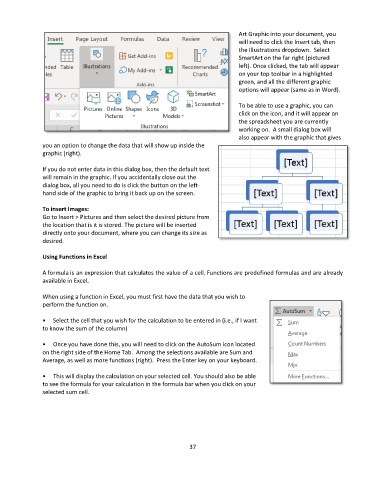
Art Graphic into your document, you
                                                                                  will need to click the Insert tab, then
                                                                                  the Illustrations dropdown.  Select
                                                                                  SmartArt on the far right (pictured
                                                                                  left). Once clicked, the tab will appear
                                                                                  on your top toolbar in a highlighted
                                                                                  green, and all the different graphic
                                                                                  options will appear (same as in Word).

                                                                                  To be able to use a graphic, you can
                                                                                  click on the icon, and it will appear on
                                                                                  the spreadsheet you are currently
                                                                                  working on.  A small dialog box will
                                                                                  also appear with the graphic that gives
               you an option to change the data that will show up inside the
               graphic (right).

               If you do not enter data in this dialog box, then the default text
               will remain in the graphic. If you accidentally close out the
               dialog box, all you need to do is click the button on the left-
               hand side of the graphic to bring it back up on the screen.

               To insert Images:
               Go to Insert > Pictures and then select the desired picture from
               the location that is it is stored. The picture will be inserted
               directly onto your document, where you can change its size as
               desired.

               Using Functions in Excel

               A formula is an expression that calculates the value of a cell. Functions are predefined formulas and are already
               available in Excel.

               When using a function in Excel, you must first have the data that you wish to
               perform the function on.

               •     Select the cell that you wish for the calculation to be entered in (i.e., if I want
               to know the sum of the column)

               •  Once you have done this, you will need to click on the AutoSum icon located
               on the right side of the Home Tab.  Among the selections available are Sum and
               Average, as well as more functions (right).  Press the Enter key on your keyboard.

               •  This will display the calculation on your selected cell. You should also be able
               to see the formula for your calculation in the formula bar when you click on your
               selected sum cell.


                                                                 37

