


Page 29 - Computer Basics - Research
P. 29
Adding Page Numbering
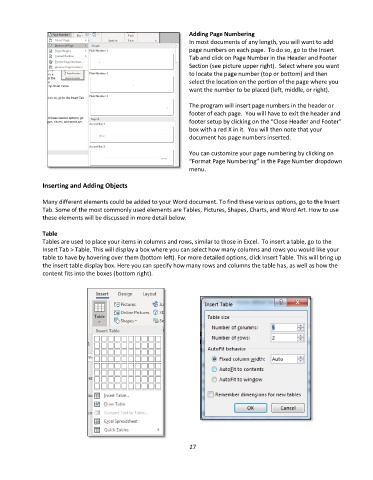
                                                                 In most documents of any length, you will want to add
                                                                 page numbers on each page.  To do so, go to the Insert
                                                                 Tab and click on Page Number in the Header and Footer
                                                                 Section (see picture upper right).  Select where you want
                                                                 to locate the page number (top or bottom) and then
                                                                 select the location on the portion of the page where you
                                                                 want the number to be placed (left, middle, or right).

                                                                 The program will insert page numbers in the header or
                                                                 footer of each page.  You will have to exit the header and
                                                                 footer setup by clicking on the “Close Header and Footer”
                                                                 box with a red X in it.  You will then note that your
                                                                 document has page numbers inserted.

                                                                 You can customize your page numbering by clicking on
                                                                 “Format Page Numbering” in the Page Number dropdown
                                                                 menu.

               Inserting and Adding Objects

               Many different elements could be added to your Word document. To find these various options, go to the Insert
               Tab. Some of the most commonly used elements are Tables, Pictures, Shapes, Charts, and Word Art. How to use
               these elements will be discussed in more detail below.

               Table
               Tables are used to place your items in columns and rows, similar to those in Excel.  To insert a table, go to the
               Insert Tab > Table. This will display a box where you can select how many columns and rows you would like your
               table to have by hovering over them (bottom left). For more detailed options, click Insert Table. This will bring up
               the insert table display box. Here you can specify how many rows and columns the table has, as well as how the
               content fits into the boxes (bottom right).


                                                                 27

