


Page 24 - Computer Basics - Research
P. 24
3.  Don’t back up your files over your old backup files.  I was an administrator of a school where we backed up all
           files daily.  The problem is that the files were backed up over the older files.  Our computer crashed, but before it
           did, the files we were backing up were damaged and useless.  So, in the process of backing up our files, we
           backed up contaminated files over our good backups.  By the time we discovered the problem, all our backups
           were destroyed.  We lost an entire year’s data (financial, grades, transcripts, etc.).  It was a major disaster!!!

           4.  Have rotational backups.  Have five flash drives, and label them Monday, Tuesday, Wednesday, Thursday, and
           Friday.  On Monday, backup to the Monday drive, and so on.  If you somehow contaminated a day, you will only
           lose one day’s work, because you can go back to the previous day’s backup.


           Basic Principles of Word Processing.  Using Microsoft

           Word.
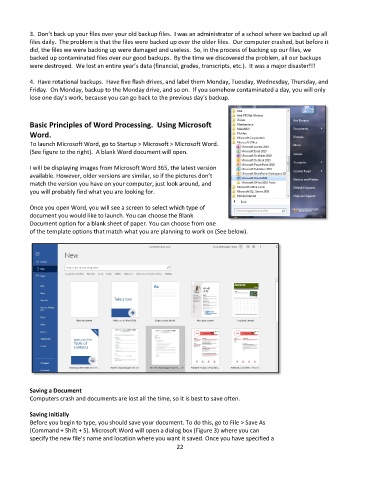
           To launch Microsoft Word, go to Startup > Microsoft > Microsoft Word.
           (See figure to the right).  A blank Word document will open.

           I will be displaying images from Microsoft Word 365, the latest version
           available. However, older versions are similar, so if the pictures don’t
           match the version you have on your computer, just look around, and
           you will probably find what you are looking for.

           Once you open Word, you will see a screen to select which type of
           document you would like to launch. You can choose the Blank
           Document option for a blank sheet of paper. You can choose from one
           of the template options that match what you are planning to work on (See below).


           Saving a Document
           Computers crash and documents are lost all the time, so it is best to save often.

           Saving Initially
           Before you begin to type, you should save your document. To do this, go to File > Save As
           (Command + Shift + S). Microsoft Word will open a dialog box (Figure 3) where you can
           specify the new file’s name and location where you want it saved. Once you have specified a
                                                             22

