


Page 20 - Computer Basics - Research
P. 20
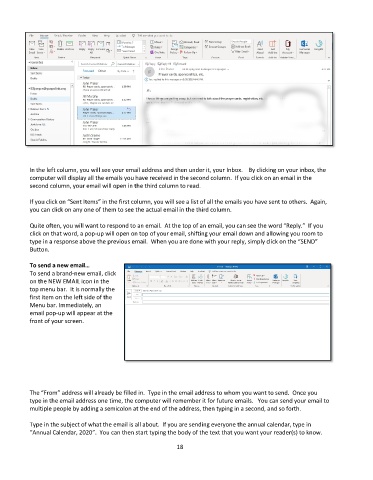
In the left column, you will see your email address and then under it, your Inbox.    By clicking on your inbox, the
           computer will display all the emails you have received in the second column.  If you click on an email in the
           second column, your email will open in the third column to read.

           If you click on “Sent Items” in the first column, you will see a list of all the emails you have sent to others.  Again,
           you can click on any one of them to see the actual email in the third column.

           Quite often, you will want to respond to an email.  At the top of an email, you can see the word “Reply.”  If you
           click on that word, a pop-up will open on top of your email, shifting your email down and allowing you room to
           type in a response above the previous email.  When you are done with your reply, simply click on the “SEND”
           Button.

           To send a new email…
           To send a brand-new email, click
           on the NEW EMAIL icon in the
           top menu bar.  It is normally the
           first item on the left side of the
           Menu bar. Immediately, an
           email pop-up will appear at the
           front of your screen.


           The “From” address will already be filled in.  Type in the email address to whom you want to send.  Once you
           type in the email address one time, the computer will remember it for future emails.   You can send your email to
           multiple people by adding a semicolon at the end of the address, then typing in a second, and so forth.

           Type in the subject of what the email is all about.  If you are sending everyone the annual calendar, type in
           “Annual Calendar, 2020”.  You can then start typing the body of the text that you want your reader(s) to know.

                                                             18

