


Page 23 - Computer Basics - Research
P. 23
If that is your choice, then you must purchase another drive to install in your computer.  If you have a laptop,
               that is normally not an option.  You can purchase a larger hard drive and install it into your computer, or if you
               have a laptop, remove your old, smaller drive and replace it with a larger drive.  In doing this, you have to
               “GHOST’ your old drive image to your new drive.  Instructions will come with your new disk drive on how to do
               this.

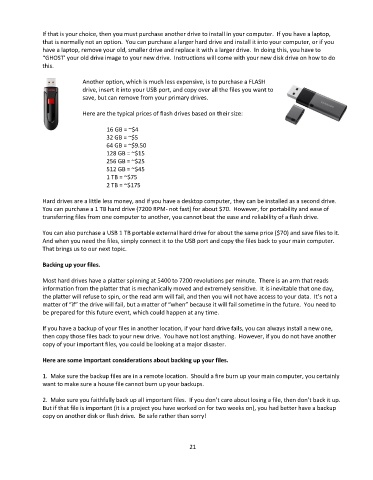
                             Another option, which is much less expensive, is to purchase a FLASH
                             drive, insert it into your USB port, and copy over all the files you want to
                             save, but can remove from your primary drives.

                             Here are the typical prices of flash drives based on their size:

                                      16 GB = ~$4
                                     32 GB = ~$5
                                     64 GB = ~$9.50
                                     128 GB = ~$15
                                     256 GB = ~$25
                                     512 GB = ~$45
                                     1 TB = ~$75
                                     2 TB = ~$175

               Hard drives are a little less money, and if you have a desktop computer, they can be installed as a second drive.
               You can purchase a 1 TB hard drive (7200 RPM- not fast) for about $70.  However, for portability and ease of
               transferring files from one computer to another, you cannot beat the ease and reliability of a flash drive.

               You can also purchase a USB 1 TB portable external hard drive for about the same price ($70) and save files to it.
               And when you need the files, simply connect it to the USB port and copy the files back to your main computer.
               That brings us to our next topic.

               Backing up your files.

               Most hard drives have a platter spinning at 5400 to 7200 revolutions per minute.  There is an arm that reads
               information from the platter that is mechanically moved and extremely sensitive.  It is inevitable that one day,
               the platter will refuse to spin, or the read arm will fail, and then you will not have access to your data.  It’s not a
               matter of “if” the drive will fail, but a matter of “when” because it will fail sometime in the future.  You need to
               be prepared for this future event, which could happen at any time.

               If you have a backup of your files in another location, if your hard drive fails, you can always install a new one,
               then copy those files back to your new drive.  You have not lost anything.  However, if you do not have another
               copy of your important files, you could be looking at a major disaster.

               Here are some important considerations about backing up your files.

               1.  Make sure the backup files are in a remote location.  Should a fire burn up your main computer, you certainly
               want to make sure a house file cannot burn up your backups.

               2.  Make sure you faithfully back up all important files.  If you don’t care about losing a file, then don’t back it up.
               But if that file is important (it is a project you have worked on for two weeks on), you had better have a backup
               copy on another disk or flash drive.  Be safe rather than sorry!


                                                                 21

