


Page 28 - Computer Basics - Research
P. 28
Formatting Text
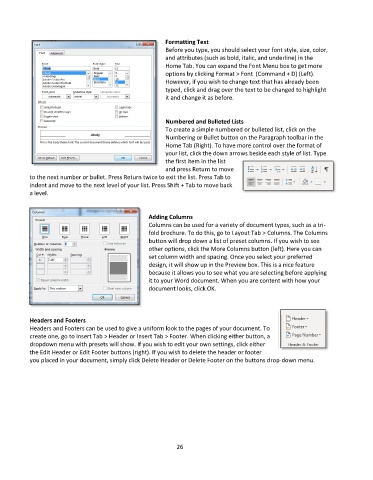
                                                         Before you type, you should select your font style, size, color,
                                                         and attributes (such as bold, italic, and underline) in the
                                                         Home Tab. You can expand the Font Menu box to get more
                                                         options by clicking Format > Font  (Command + D) (Left).
                                                         However, if you wish to change text that has already been
                                                         typed, click and drag over the text to be changed to highlight
                                                         it and change it as before.


                                                         Numbered and Bulleted Lists
                                                         To create a simple numbered or bulleted list, click on the
                                                         Numbering or Bullet button on the Paragraph toolbar in the
                                                         Home Tab (Right). To have more control over the format of
                                                         your list, click the down arrows beside each style of list. Type
                                                         the first item in the list
                                                         and press Return to move
           to the next number or bullet. Press Return twice to exit the list. Press Tab to
           indent and move to the next level of your list. Press Shift + Tab to move back
           a level.


                                                   Adding Columns
                                                   Columns can be used for a variety of document types, such as a tri-
                                                   fold brochure. To do this, go to Layout Tab > Columns. The Columns
                                                   button will drop down a list of preset columns. If you wish to see
                                                   other options, click the More Columns button (left). Here you can
                                                   set column width and spacing. Once you select your preferred
                                                   design, it will show up in the Preview box. This is a nice feature
                                                   because it allows you to see what you are selecting before applying
                                                   it to your Word document. When you are content with how your
                                                   document looks, click OK.


           Headers and Footers
           Headers and Footers can be used to give a uniform look to the pages of your document. To
           create one, go to Insert Tab > Header or Insert Tab > Footer. When clicking either button, a
           dropdown menu with presets will show. If you wish to edit your own settings, click either
           the Edit Header or Edit Footer buttons (right). If you wish to delete the header or footer
           you placed in your document, simply click Delete Header or Delete Footer on the buttons drop-down menu.


                                                             26

