


Page 21 - Computer Basics - Research
P. 21
If you want to attach another file to your email, you can do so by clicking on the Paper Clip icon entitled “Attach
               File.”  The computer will ask you to select the file you want to attach.  You can select multiple files if you want to
               send more than one.  You are limited in the size of the total files you can send.  Most email clients limit the size of
               the file to 20 MB or less.  If you try to send a file that exceeds the allowable size, the computer will tell you that
               the file is too large to send.  When everything is typed in as instructed, click on the SEND button (looks like a
               paper airplane).  The email will be immediately sent, but sometimes it takes a few seconds or even minutes to
               send it, depending on its size.  Do not exit your email client until the email is delivered.

                                                                           Avoiding Junk Emails.

                                                                           Once you use your email program, the
                                                                           advertisers and spammers will get your
                                                                           address, and you will receive TONS of junk
                                                                           mail.   They do nothing but distract you from
                                                                           being efficient in doing your job.  So, you want
                                                                           to make sure that you receive very few junk
                                                                           emails.  Here is how to limit them:

                                                                           If you receive an email from an advertiser, you
                                                                           can open the email and scroll down to the
                                                                           bottom.  Somewhere in the fine print, the
                                                                           advertiser is required to provide you a way to
                                                                           “UNSUBSCRIBE” from their future emails.  Go
                                                                           ahead and click on it, and that will limit future
                                                                           emails from that advertiser.  Sometimes, they
                                                                           persist in sending you more emails, however.
                                                                           When they do that, you can train your
                                                                           computer to recognize junk from the good
                                                                           emails.
                                                                           Here is how you do that.

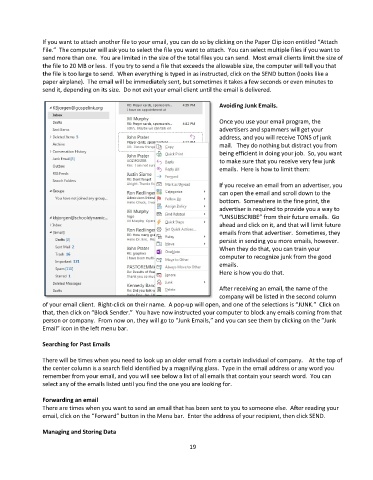
                                                                           After receiving an email, the name of the
                                                                           company will be listed in the second column
               of your email client.  Right-click on their name.  A pop-up will open, and one of the selections is “JUNK.”  Click on
               that, then click on “Block Sender.”  You have now instructed your computer to block any emails coming from that
               person or company.  From now on, they will go to “Junk Emails,” and you can see them by clicking on the “Junk
               Email” icon in the left menu bar.

               Searching for Past Emails

               There will be times when you need to look up an older email from a certain individual of company.    At the top of
               the center column is a search field identified by a magnifying glass.  Type in the email address or any word you
               remember from your email, and you will see below a list of all emails that contain your search word.  You can
               select any of the emails listed until you find the one you are looking for.

               Forwarding an email
               There are times when you want to send an email that has been sent to you to someone else.  After reading your
               email, click on the “Forward” button in the Menu bar.  Enter the address of your recipient, then click SEND.

               Managing and Storing Data

                                                                 19

