


Page 125 - JoFA_2022
P. 125
TECHNOLOGY Q&A


         MICROSOFT EXCEL
         Creating a drop-down list in Excel


         Q. How do I create   A. Creating drop-down lists in your spreadsheets   (which you created in the first step of this walk-
         a drop-down list   is a great way to ensure that only certain informa-  through). Do not include the header of your Excel
         to include in my   tion is entered into a cell. For example, if you want   table unless you want to include it as a drop-down
         spreadsheet?     a customer’s state listed in a cell, you may want the   option.
                          person inputting the information to use only official   The Data Validation window has two check-
                          U.S. postal abbreviations. With a drop-down list of   boxes: Ignore blank and In-cell dropdown.
                          only those abbreviations, employees would not be   Place a check next to Ignore blank if you want
                          able to input “tn,” “Tenn.,” or anything besides the   to allow the cell(s) with the drop-down list to
                          postal abbreviation “TN” for a customer living in   be left blank. If you want to require the user to
                          Tennessee.                                select an item from the drop-down list, do not
                            Using drop-down lists can also make inputting   place a check here. Place a check next to In-cell
                          information faster by already having the inputs   dropdown to create the drop-down list in each
                          available. If you have cells where only specific   selected cell(s).
                          information should be inputted, drop-down lists are   At this point, you could click OK and have a
                          a valuable feature to add. You can access an Excel   drop-down list in your designated cells. However,
                          workbook and accompanying video for creating   you have additional options. You could include
                          a drop-down list with the website version of this   an input message, which would make a message
                          article at journalofaccountancy.com.      pop up when a user clicks on the cell with a
                            To create a drop-down list, start by writing out   drop-down list. This helps guide the user on what
                          the items that will be in it. Enter these somewhere   to enter in the cell(s). You could also include an
                          in your workbook, perhaps on a separate tab. Be   error alert, which would display a message if a user
                          sure that the items are in an Excel table. If they   tried to enter something that was not included in
                          are not, click anywhere within the data and click   the drop-down list. This could either stop them
                          Ctrl+T to covert the range to a table.    from doing so or simply warn them or provide
                            Next, select the cell(s) where the drop-down list   more information.
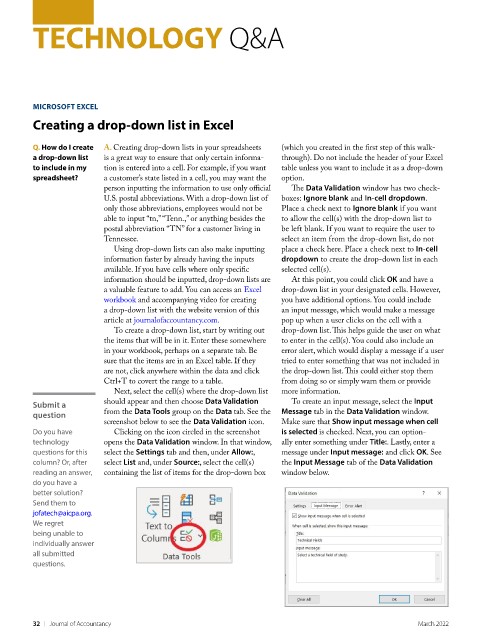
         Submit a         should appear and then choose Data Validation   To create an input message, select the Input
         question         from the Data Tools group on the Data tab. See the   Message tab in the Data Validation window.
                          screenshot below to see the Data Validation icon.  Make sure that Show input message when cell
         Do you have        Clicking on the icon circled in the screenshot   is selected is checked. Next, you can option-
         technology       opens the Data Validation window. In that window,   ally enter something under Title:. Lastly, enter a
         questions for this   select the Settings tab and then, under Allow:,   message under Input message: and click OK. See
         column? Or, after   select List and, under Source:, select the cell(s)   the Input Message tab of the Data Validation
         reading an answer,   containing the list of items for the drop-down box   window below.
         do you have a
         better solution?
         Send them to
         jofatech@aicpa.org.
         We regret
         being unable to
         individually answer
         all submitted
         questions.


         32    |   Journal of Accountancy                                                           March 2022

