


Page 128 - JoFA_2022
P. 128
Share the “right” screen                  of turning up your speakers to try to capture the
          About the        When asked to make a presentation in a Zoom   audio in your microphone. Checking this box will
          authors          meeting, you likely will want to share your screen so   stream the audio to attendees in a clean and easy
          Kelly L. Williams,   that attendees can view your slides or other content.   manner.
          CPA, Ph.D., MBA,   The default for many people is to select the generic
          is an associate   Save screen, which shows whatever is on your   INTERMEDIATE TIPS
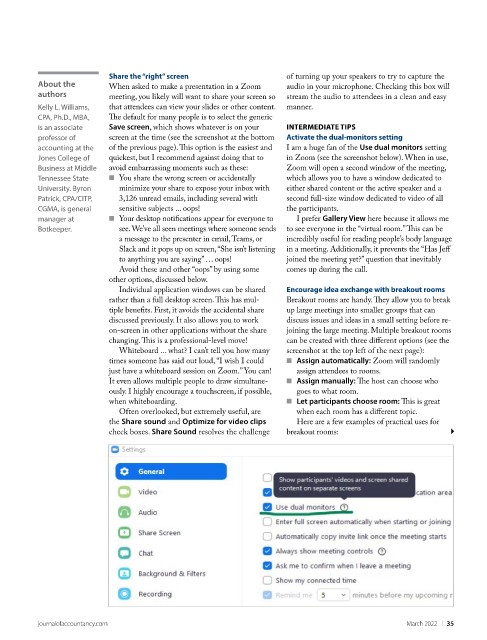
          professor of     screen at the time (see the screenshot at the bottom   Activate the dual-monitors setting
          accounting at the   of the previous page). This option is the easiest and   I am a huge fan of the Use dual monitors setting
          Jones College of   quickest, but I recommend against doing that to   in Zoom (see the screenshot below). When in use,
          Business at Middle   avoid embarrassing moments such as these:   Zoom will open a second window of the meeting,
          Tennessee State   ■    You share the wrong screen or accidentally   which allows you to have a window dedicated to
          University. Byron   minimize your share to expose your inbox with   either shared content or the active speaker and a
          Patrick, CPA/CITP,   3,126 unread emails, including several with   second full-size window dedicated to video of all
          CGMA, is general   sensitive subjects ... oops!            the participants.
          manager at       ■    Your desktop notifications appear for everyone to   I prefer Gallery View here because it allows me
          Botkeeper.         see. We’ve all seen meetings where someone sends   to see everyone in the “virtual room.” This can be
                             a message to the presenter in email, Teams, or   incredibly useful for reading people’s body language
                             Slack and it pops up on screen, “She isn’t listening   in a meeting. Additionally, it prevents the “Has Jeff
                             to anything you are saying” … oops!     joined the meeting yet?” question that inevitably
                             Avoid these and other “oops” by using some   comes up during the call.
                           other options, discussed below.
                             Individual application windows can be shared   Encourage idea exchange with breakout rooms
                           rather than a full desktop screen. This has mul-  Breakout rooms are handy. They allow you to break
                           tiple benefits. First, it avoids the accidental share   up large meetings into smaller groups that can
                           discussed previously. It also allows you to work   discuss issues and ideas in a small setting before re-
                           on-screen in other applications without the share   joining the large meeting. Multiple breakout rooms
                           changing. This is a professional-level move!  can be created with three different options (see the
                             Whiteboard ... what? I can’t tell you how many   screenshot at the top left of the next page):
                           times someone has said out loud, “I wish I could   ■    Assign automatically: Zoom will randomly
                           just have a whiteboard session on Zoom.” You can!   assign attendees to rooms.
                           It even allows multiple people to draw simultane-  ■    Assign manually: The host can choose who
                           ously. I highly encourage a touchscreen, if possible,   goes to what room.
                           when whiteboarding.                       ■    Let participants choose room: This is great
                             Often overlooked, but extremely useful, are   when each room has a different topic.
                           the Share sound and Optimize for video clips   Here are a few examples of practical uses for
                           check boxes. Share Sound resolves the challenge   breakout rooms:


          journalofaccountancy.com                                                               March 2022    |   35

