


Page 499 - Divyank Tyagi
P. 499
|
                                                                 unDeRstanDing PHoto-RealistiC Visualization    465


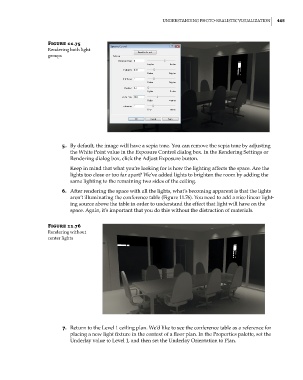
                        Figure 11.75
                        Rendering both light
                        groups


                             5.  By default, the image will have a sepia tone. You can remove the sepia tone by adjusting
                                the White Point value in the Exposure Control dialog box. In the Rendering Settings or
                                Rendering dialog box, click the Adjust Exposure button.
                                Keep in mind that what you’re looking for is how the lighting affects the space. Are the
                                lights too close or too far apart? We’ve added lights to brighten the room by adding the
                                same lighting to the remaining two sides of the ceiling.
                             6.  After rendering the space with all the lights, what’s becoming apparent is that the lights
                                aren’t illuminating the conference table (Figure 11.76). You need to add a nice linear light-
                                ing source above the table in order to understand the effect that light will have on the
                                space. Again, it’s important that you do this without the distraction of materials.

                        Figure 11.76
                        Rendering without
                        center lights


                             7.  Return to the Level 1 ceiling plan. We’d like to see the conference table as a reference for
                                placing a new light fixture in the context of a floor plan. In the Properties palette, set the
                                Underlay value to Level 1, and then set the Underlay Orientation to Plan.


          c11.indd   465                                                                             5/3/2014   11:07:35 AM

