


Page 50 - Computer Basics - Research
P. 50
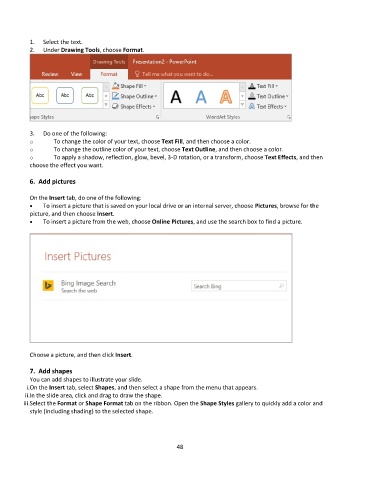
1.   Select the text.
           2.   Under Drawing Tools, choose Format.


           3.   Do one of the following:
           o       To change the color of your text, choose Text Fill, and then choose a color.
           o       To change the outline color of your text, choose Text Outline, and then choose a color.
           o       To apply a shadow, reflection, glow, bevel, 3-D rotation, or a transform, choose Text Effects, and then
           choose the effect you want.

           6.  Add pictures

           On the Insert tab, do one of the following:
           •    To insert a picture that is saved on your local drive or an internal server, choose Pictures, browse for the
           picture, and then choose Insert.
           •    To insert a picture from the web, choose Online Pictures, and use the search box to find a picture.


           Choose a picture, and then click Insert.

           7.  Add shapes
           You can add shapes to illustrate your slide.
          i.On the Insert tab, select Shapes, and then select a shape from the menu that appears.
          ii.In the slide area, click and drag to draw the shape.
         iii.Select the Format or Shape Format tab on the ribbon. Open the Shape Styles gallery to quickly add a color and
           style (including shading) to the selected shape.


                                                             48

