


Page 529 - Divyank Tyagi
P. 529
|
                                                           using extended Modeling teChniques for BasiC Walls    495


                           Editing Wall Joins
                           In another common design and construction scenario, you may need to specifically control
                           how two or more walls behave when they intersect. There are a number of ways to customize
                           these occurrences. Let’s examine two scenarios where wall joins may need to be edited: phasing
                           conditions and acute angled corners.
                             When you create a model for a renovation of an existing building, you will likely create
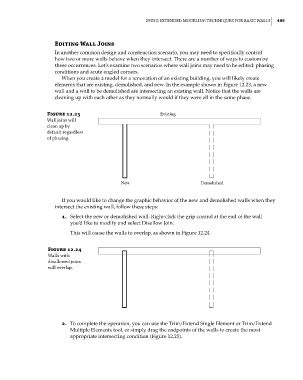
                           elements that are existing, demolished, and new. In the example shown in Figure 12.23, a new
                           wall and a wall to be demolished are intersecting an existing wall. Notice that the walls are
                           cleaning up with each other as they normally would if they were all in the same phase.

                        Figure 12.23                            Existing
                        Wall joins will
                        clean up by
                        default regardless
                        of phasing.


                                                  New                         Demolished

                             If you would like to change the graphic behavior of the new and demolished walls when they
                           intersect the existing wall, follow these steps:
                             1.  Select the new or demolished wall. Right-click the grip control at the end of the wall
                                you’d like to modify and select Disallow Join.
                                This will cause the walls to overlap, as shown in Figure 12.24.


                        Figure 12.24
                        Walls with
                        disallowed joins
                        will overlap.


                             2.  To complete the operation, you can use the Trim/Extend Single Element or Trim/Extend
                                Multiple Elements tool, or simply drag the endpoints of the walls to create the most
                                appropriate intersecting condition (Figure 12.25).


          c12.indd   495                                                                             5/3/2014   11:12:46 AM

